# How to add a size chart in WooCommerce for t-shirts and hoodies
WooCommerce has no size chart setting. Three ways to add one to t-shirts and hoodies: a table in the product description, a size chart plugin, or a block in the product template. What the chart should measure, where customers see it on a product with a designer, and why the print does not grow with the size.
**WooCommerce has no size chart setting, so you add one yourself: as a table in the product's description, with a size chart plugin, or as a block in the product page template of a block theme.** The chart's numbers come from the maker of your blank garments or from measuring them yourself: chest width, body length and sleeve length for each size, laid flat, in centimetres and inches. On a product with PrintBlob's designer, put the chart in the description or in a tab of its own, because the designer takes the place of WooCommerce's product summary, where the short description and anything shown beside Add to cart would otherwise go.
This guide covers what a size chart for printed garments shows, the three ways to add one, and where customers see it on a product they design.
## What a size chart for printed garments shows
Customers choose a size from the chart, so it has to describe the garment you print on, not a size system in general. Take the numbers from the blank maker's own size chart or specification sheet for that exact style, or lay your own shirts flat and measure them.
- **Chest width:** straight across the front, from armpit to armpit, laid flat. Say that it is measured flat, or customers double it in their heads and some do not.
- **Body length:** from the highest point of the shoulder, next to the collar, to the hem.
- **Sleeve length:** for long-sleeved shirts and hoodies, from the shoulder seam to the cuff.
- **Both units:** centimetres and inches, side by side. One inch is 2.54 cm.
- **The fit,** in words: unisex, fitted or oversized, and whether it is a women's cut. A fitted women's shirt marked M is not a unisex M.
- **A note on tolerance:** garments of one size differ a little from piece to piece, and cotton can shrink in the wash. Say so, and say what the customer should do between two sizes.
A layout that works for a t-shirt, filled in from your blank's measurements:
| Size | Chest width, flat (cm / in) | Body length (cm / in) | Sleeve length (cm / in) |
|---|---|---|---|
| S | | | |
| M | | | |
| L | | | |
| XL | | | |
For a hoodie, add the sleeve length from the shoulder, and say whether the body length includes the waistband. Make one chart per blank: two t-shirts from different makers marked L can differ by several centimetres.
## How to add a size chart, step by step
1. **Get the measurements of your blank.** Download the size chart or specification sheet of the exact style you print on from its maker, or lay one shirt of each size flat and measure it.
2. **Choose what the chart shows.** Chest width measured flat from armpit to armpit, body length from the highest point of the shoulder to the hem, and the sleeve length for long sleeves and hoodies, with the fit in words.
3. **Make the table in both units.** One row per size and one column per measurement, in centimetres and inches side by side. One inch is 2.54 cm.
4. **Add it to the product.** Write it as an HTML table in the description’s Text tab, create it in a size chart plugin and assign it to the products or categories that use the blank, or, on a block theme, add it to the product template under Appearance › Editor › Templates.
5. **Check it where customers look.** Open the product as a customer on a computer and on a phone. On a product with PrintBlob’s designer, the chart must be in the description, in a tab or in the designer’s template, because the short description is not shown.
## Three ways to add a size chart in WooCommerce
### 1. A table in the product description
The simplest way needs nothing installed. WooCommerce edits products in the classic editor, not the block editor, so write the table in the description's **Text** tab as HTML:
```html
Size chart
| Size | Chest width, flat | Body length |
|---|
| S | … cm / … in | … cm / … in |
| M | … cm / … in | … cm / … in |
```
Customers see it in the product's **Description**. The drawback is that each product has its own copy: when you change blanks, you edit every product that uses them. It suits a shop with a few products, or a different blank on each.
### 2. A size chart plugin
A size chart plugin keeps a chart in one place and shows it on many products. Free ones in the WordPress.org directory include **Sizor Product Size Chart For WooCommerce**, **WPC Product Size Chart for WooCommerce** and **Product Size Charts Plugin for WooCommerce** (names as listed on 21 October 2026). Sizor's description, for example, says it shows charts on chosen products or categories, so one chart can serve every shirt made from the same blank.
Plugins show the chart in a tab of its own beside Description, or behind a link or button near Add to cart that opens it in a pop-up, and several let you choose. Some also give a shortcode, which you can put in the description. Choose the tab or the shortcode on products with a designer (see below), and check the chart on a phone, where a wide table has to scroll.
### 3. A block in the product template (block themes)
On a block theme, the product page is a template you edit under **Appearance › Editor › Templates**. A Table block, or a Details block that opens to show the table, placed in the template appears on every product that uses it. That suits a shop where all products of one kind share one blank. Each product page shows the same chart, so make sure it is true of all of them.
## Where customers see it on a product with a designer
With [PrintBlob](/), the designer replaces WooCommerce's product photos and summary on every product it is turned on for. The designer shows the colours and sizes as buttons, beside the product and its price, and adds the chosen size to the cart.
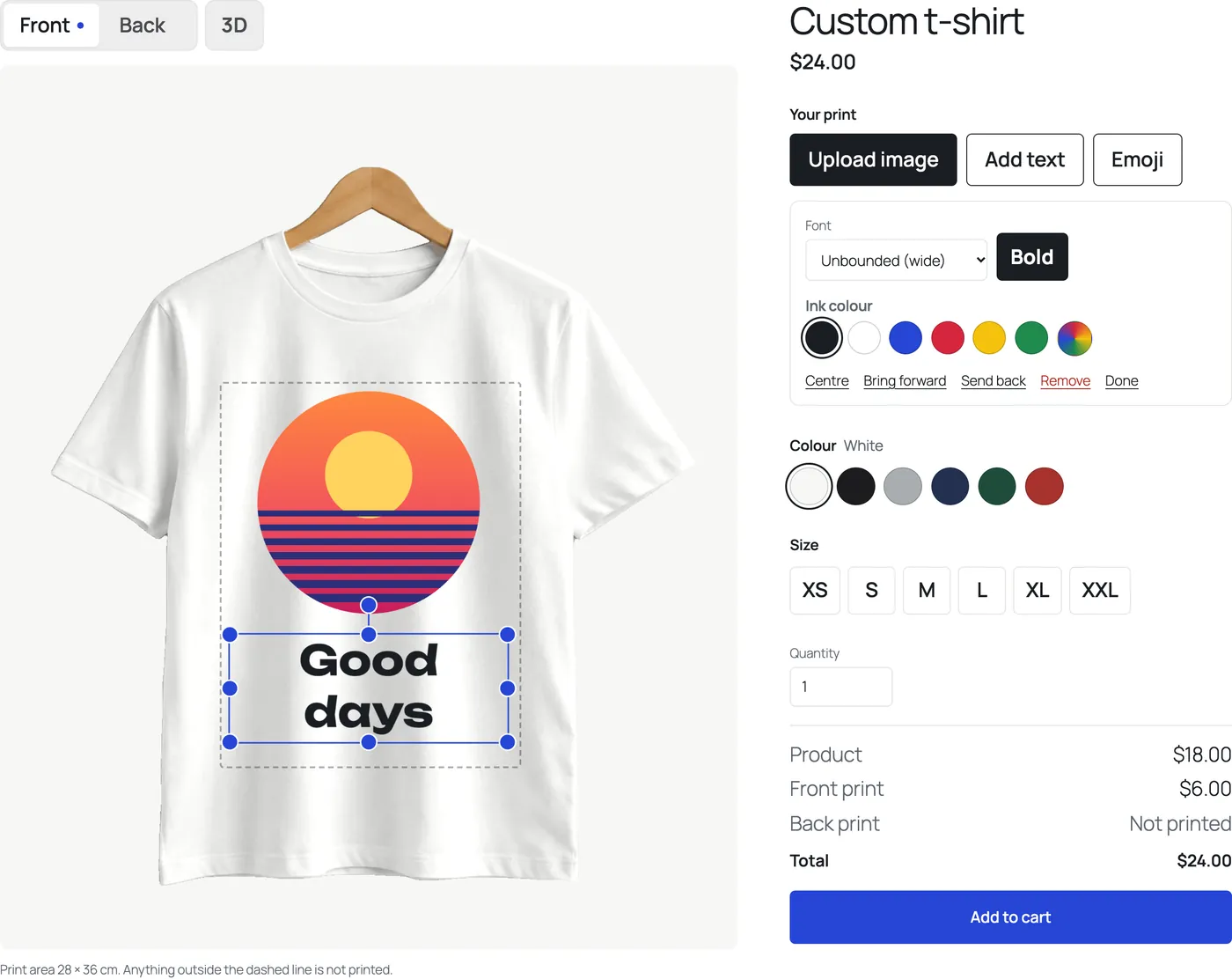
What that means for the size chart:
- **The description shows below the designer.** In a classic theme, WooCommerce's tabs (Description, Additional information, Reviews) stay under the designer. In a block theme, PrintBlob gives designer products their own template, **Product with the PrintBlob designer**, with the designer and, under it, WooCommerce's product details, unless your theme brings its own template for them.
- **The short description does not show.** It is part of the product summary the designer replaces, so a size chart there is not seen on designer products.
- **A plugin's link beside Add to cart may not show.** Plugins that place their link or button in WooCommerce's product summary have nowhere to put it on a designer product. A chart in a tab is shown.
- **On a block theme, edit the designer's template** to put the chart in the same place on every designer product: open **Product with the PrintBlob designer** under **Appearance › Editor › Templates** and add the block under the designer.
Whichever way you choose, open a designer product as a customer, on a computer and on a phone, and check that the chart is there and readable.
## The garment size and the print size are not the same
The size chart is about the garment. The print has its own size: in PrintBlob, each side of a mockup has one print area in centimetres, the same whichever garment size the customer chooses. The t-shirt that comes with the free plugin prints 28 × 36 cm on the front, so a design filling it covers less of an XXL shirt than of an S. Set the print area to fit the smallest size you sell, and say on the product page that the print is the same size on every garment size. For the print sizes themselves, read [What size should a t-shirt design be?](/guides/t-shirt-design-size/) and [What size should a hoodie design be?](/guides/hoodie-design-size/).
## Questions shop owners ask
### Does WooCommerce have a size chart?
No. WooCommerce has no size chart setting: add one as a table in the product description, with a size chart plugin, or as a block in the product template of a block theme.
### How do I add a size chart in WooCommerce without a plugin?
Write it as an HTML table in the product description’s Text tab; it shows in the product’s Description. On a block theme, you can instead add a Table block to the product template under Appearance › Editor › Templates, where it shows on every product that uses the template.
### Is there a free size chart plugin for WooCommerce?
Yes, several are free in the WordPress.org directory, among them Sizor Product Size Chart For WooCommerce, WPC Product Size Chart for WooCommerce and Product Size Charts Plugin for WooCommerce. They keep a chart in one place and show it on many products, in a tab or a pop-up.
### What measurements should a t-shirt size chart show?
Chest width measured flat from armpit to armpit, and body length from the highest point of the shoulder to the hem, for every size, in centimetres and inches. Add the sleeve length for long sleeves and hoodies, and the fit in words.
### Why doesn’t my size chart show on a product with PrintBlob’s designer?
The designer takes the place of WooCommerce’s product summary, so a chart in the short description is not shown, and a plugin’s button placed beside Add to cart may not be either. Put the chart in the description or in a tab; both show below the designer.
### Does the print get bigger on larger sizes?
Not in PrintBlob: each side of a mockup has one print area, the same on every garment size. The t-shirt that comes with the free plugin prints 28 × 36 cm on the front, so set the print area to fit the smallest size you sell.
To set up the sizes and colours themselves as a variable product, read [How to make a custom t-shirt website with WooCommerce](/guides/sell-custom-t-shirts-woocommerce/), and for other products, [Sell custom hoodies, mugs, tote bags and caps in WooCommerce](/guides/custom-hoodies-mugs-tote-bags-caps-woocommerce/).
## Get PrintBlob Pro
Pro adds print-ready files, back printing, a 3D view and a production print queue to the free designer. Paid with Stripe in US dollars, no tax added; one domain per licence.
- **$69 a year**: [Buy the yearly licence](https://printblob.com/pricing/#buy). Full refund within 14 days.
- Limited-time offer until 31 December 2026: **$99 once**: [Buy the lifetime licence](https://printblob.com/pricing/#buy). Full refund within 14 days.
## More guides
- [How to make a custom t-shirt website with WooCommerce](https://printblob.com/guides/sell-custom-t-shirts-woocommerce/)
- [Print-ready t-shirt files: format, transparency and resolution](https://printblob.com/guides/print-ready-t-shirt-files/)
- [What size should a t-shirt design be? Sizes by placement in inches, centimetres and pixels](https://printblob.com/guides/t-shirt-design-size/)
- [Photographing t-shirts for a product designer](https://printblob.com/guides/t-shirt-photos-for-a-product-designer/)
- [WooCommerce product designer plugins compared](https://printblob.com/guides/woocommerce-product-designer-plugins-compared/)
- [Let customers upload a logo or photo to a WooCommerce product](https://printblob.com/guides/customer-image-upload-woocommerce/)
- [Add custom text to WooCommerce products: names, slogans and messages](https://printblob.com/guides/custom-text-woocommerce-products/)
- [How to price custom t-shirt printing](https://printblob.com/guides/price-custom-t-shirt-printing/)
- [Sell custom hoodies, mugs, tote bags and caps in WooCommerce](https://printblob.com/guides/custom-hoodies-mugs-tote-bags-caps-woocommerce/)
- [DTF vs DTG vs screen printing for a small print shop](https://printblob.com/guides/dtf-vs-dtg-vs-screen-printing/)
- [What size should a logo be on a hat? Cap, beanie and bucket hat sizes for embroidery and print](https://printblob.com/guides/hat-logo-size/)
- [What size should a hoodie design be? Hoodie and sweatshirt print sizes in inches, centimetres and pixels](https://printblob.com/guides/hoodie-design-size/)
- [Mug design size: 11 oz and 15 oz sublimation template sizes in inches, centimetres and pixels](https://printblob.com/guides/mug-design-size/)
- [Print areas and print sizes: measure your products and set each side](https://printblob.com/guides/print-area-sizes-by-product/)
- [Tote bag print size: design sizes in inches, centimetres and pixels](https://printblob.com/guides/tote-bag-design-size/)
- [Team and group orders with names and numbers in WooCommerce](https://printblob.com/guides/team-orders-names-numbers-woocommerce/)
- [A checklist for running a WooCommerce print-on-demand shop](https://printblob.com/guides/woocommerce-print-on-demand-checklist/)
- [How PrintBlob Pro makes a 3D product from your photos](https://printblob.com/guides/3d-product-from-photos/)
- [Artwork approval for custom prints: a live mockup or emailed proofs](https://printblob.com/guides/artwork-approval-live-preview-vs-email-proofs/)
- [DTF print file requirements: PNG, 300 DPI and a transparent background](https://printblob.com/guides/dtf-print-file-requirements/)
- [Set up an Instagram shop with WooCommerce for custom prints](https://printblob.com/guides/woocommerce-instagram-shop-custom-prints/)
- [WooCommerce local pickup for print shops: set-up and common problems](https://printblob.com/guides/woocommerce-local-pickup-print-shop/)
- [WooCommerce order statuses for a print shop: custom statuses for artwork, printing and pickup](https://printblob.com/guides/woocommerce-order-status-print-shop/)
- [WooCommerce personalised product plugins: product add-ons or a product designer](https://printblob.com/guides/woocommerce-personalised-product-plugin/)
- [WooCommerce colour swatches for t-shirts: swatch plugins, variation photos or one recoloured photo](https://printblob.com/guides/woocommerce-colour-swatches-t-shirts/)
- [DTF gang sheet builder for WooCommerce: sell gang sheets and transfers on your own website](https://printblob.com/guides/dtf-gang-sheet-builder-woocommerce/)
- [What you need to start a t-shirt printing business: equipment, supplies and an online shop](https://printblob.com/guides/start-t-shirt-printing-business/)
- [Jersey name and number size: back, front and sleeve numbers by sport in inches, cm and pixels](https://printblob.com/guides/jersey-name-and-number-size/)
- [What size should a sublimation design be for shirts? Paper sizes, design sizes and the file format](https://printblob.com/guides/sublimation-shirt-design-size/)
---
Page: https://printblob.com/guides/woocommerce-size-chart-t-shirts/
See also: [docs](https://printblob.com/docs/index.md), [features](https://printblob.com/features/index.md), [situations](https://printblob.com/situations/index.md), [compare](https://printblob.com/compare/index.md), [demos](https://printblob.com/demos/index.md), [tools](https://printblob.com/tools/index.md), [themes](https://printblob.com/themes/index.md).