A custom cap and hat business
To sell custom hats online from your own WooCommerce shop, let customers place their logo, initials or name on your cap's front on the product page, and take each order with its design ready to produce. With PrintBlob Pro, a cap is a mockup on your own photo with a small print area at its real size, and each order arrives with a transparent 300 DPI PNG of the print and a vector PDF and SVG of it. PrintBlob makes no embroidery file: for embroidered hats, those files go to your digitiser.
Published , by the PrintBlob team.
Who is this for?
A shop that decorates caps, trucker hats, dad hats or beanies, with heat transfers, DTF or embroidery, that wants customers to order from the website with their own logo, a club’s initials or a name, instead of sending artwork and waiting for a mock-up. Starting a hat business means choosing blanks and a way to decorate them; this page is about the part online: how a customer’s design reaches you ready to produce.
What matters in PrintBlob?
- Your cap, on your photo (PrintBlob Pro). A cap is a mockup like any product: a photo of the cap from the front, the print area drawn over the front panels and its real size in centimetres. Customers see the print area as a dashed line on your cap and place their logo or text inside it.
- A small print area at its real size. A structured cap’s front takes about 4 × 2 in (10.2 × 5.1 cm), and every hat placement, for embroidery and for print, is in hat logo size. The designer shows the print area’s size in centimetres, so a customer judges their initials against it.
- Logos that print sharp. Customers’ logos are often small images. While they place one, the designer shows its resolution at the print size and warns below 150 DPI. A 4 × 2 in (10.2 × 5.1 cm) front is 1200 × 600 pixels at 300 DPI, so a logo far smaller than a t-shirt needs can still print sharp.
- Text typed on the cap. Initials, a name or a date, typed on the cap itself in one of the four bundled fonts, bold and an ink colour; with PrintBlob Pro, the fonts you add to WordPress’s Font Library too.
- Files for each order (PrintBlob Pro). When the cap goes into the cart, the print becomes a transparent PNG at 300 DPI at exactly the print area’s size, and a vector PDF and an SVG with typed text as outlines. Print the PNG as a transfer, or send the files to your digitiser.
- The print queue (PrintBlob Pro). PrintBlob › Print queue lists the designed items of processing and on-hold orders still to produce, oldest first, and Download order (ZIP) gives an order’s files with a print list.
What should I know before I start?
- Embroidery. Embroiderers ask for letters at least 0.25 in (0.6 cm) tall, and thin lines and gradients stitch poorly. Say on the product page what size of text stitches well. A PNG, PDF or SVG is not a stitch file: every embroidered logo goes through a digitiser.
- Transfers on structured caps. Transfer suppliers say a wide transfer on a structured cap needs a cap press, and hat logo size gives the widths they publish; check your press and your supplier’s limits before you set the print size.
- Colours. Recolouring tints every white and grey part of the photo the same colour, so it suits a cap in one colour. For two-tone caps, such as a trucker hat with a white mesh back, leave it off and photograph the cap as you sell it.
- Setting up the product. Colours, a simple or variable product and the designer tab are in sell custom hoodies, mugs, tote bags and caps.
What are the limits?
- No embroidery file and no stitch pricing. PrintBlob makes PNG, PDF and SVG files, not a .DST or .PES file. A side’s print price is set per product, and PrintBlob Pro’s quantity breaks lower it for larger orders; it does not change with the logo’s size, its stitches or its colours.
- A flat print on a photo. The print area is one flat rectangle on the photo of a curved front, and the design is shown flat on it.
- No 3D cap. PrintBlob Pro’s 3D view is made for garments on a hanger and needs a front and a back photo; a cap with only its front shows no 3D button. If you turn on the back, set Product view to Front and back only (2D) in its PrintBlob tab.
How do I try it?
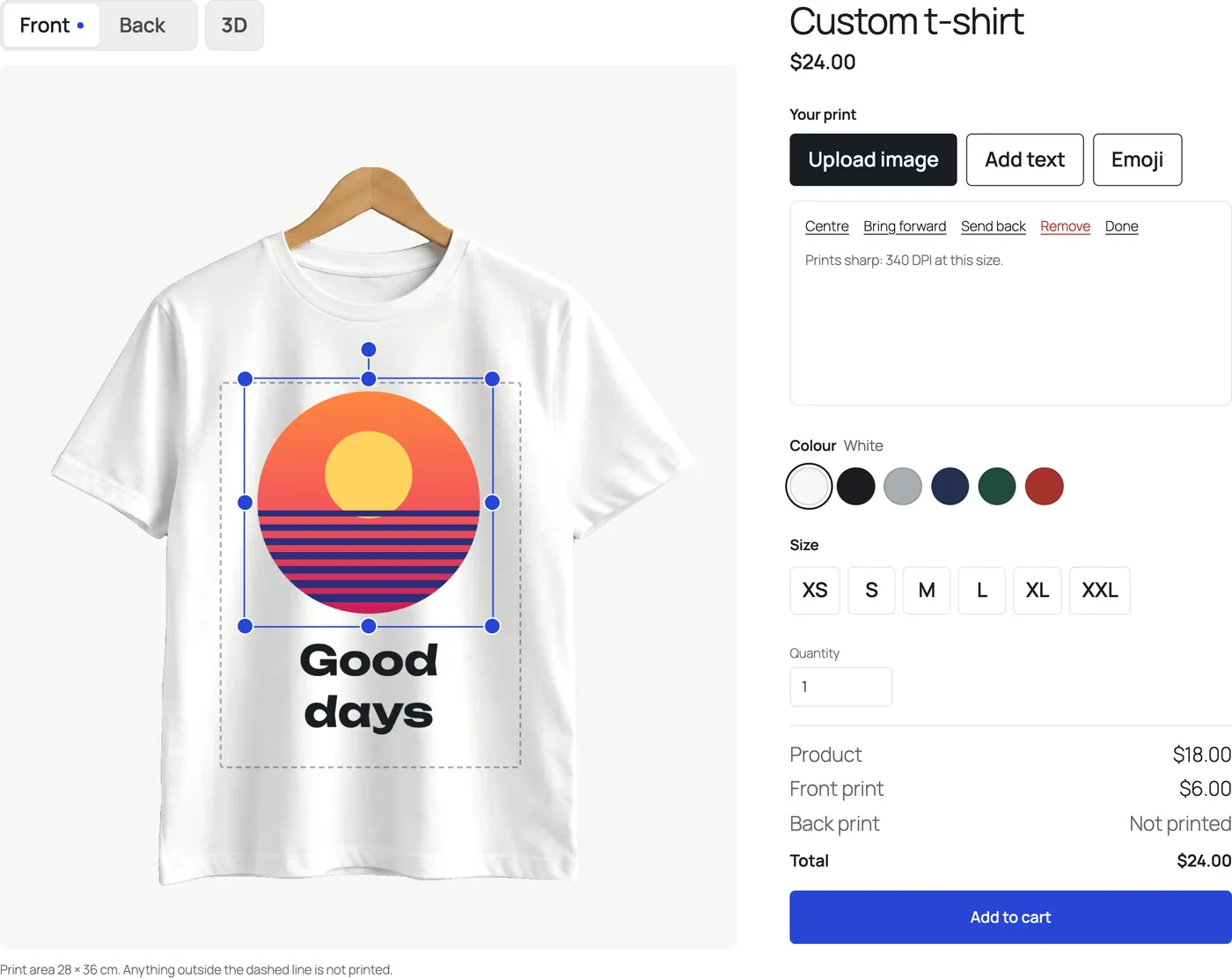
Open the text demo and type over the line on the shirt, as a customer would type their initials on a cap. Then photograph one cap and make its mockup with PrintBlob Pro.
How does a cap order go through PrintBlob?
- Photograph the cap. Square on from the front, the front panels filling a good part of the frame, on a plain or transparent background.
- Make the cap's mockup. With PrintBlob Pro, open PrintBlob › Mockups › Add mockup, tick Customers can print on this side for Front only, draw the print area over the front panels and enter its print width and height in centimetres.
- Turn the designer on for the cap. In the product's PrintBlob designer tab, tick Designer, choose the cap's mockup and enter the front's print price.
- The customer designs and orders. They upload their logo or type their initials on the cap, see whether the logo prints sharply at that size, choose the colour and add it to the cart.
- Produce it from the queue. PrintBlob › Print queue lists the cap; Download order (ZIP) gives its PNG, PDF and SVG and a print list. Print the transfer, or send the files to your digitiser for an embroidered cap, then select Mark printed.
Try it in the live demo
Text typed on the product. The designer opens with a line of text already typed on the front. There is no text field: customers type on the shirt itself, and choose one of the four bundled fonts, bold and an ink colour.
Set it up
- Mockups
A mockup is a product photo for each printable side, with its print area and the real print size in centimetres. PrintBlob Pro makes every order's print files at that size: a 300 DPI PNG, a vector PDF and an SVG.
- Products
To sell a product with the designer, open the product's PrintBlob designer tab, turn the designer on, choose its mockup and set a print price for each printed side.
- PrintBlob Pro
PrintBlob Pro adds print-ready files of every order (a 300 DPI PNG, a vector PDF and SVG, and a CMYK PDF through your printer's profile) with the customers' original images, your own products and photos, back and sleeve printing, a 3D view, design templates, a clipart library, quantity breaks, names and numbers for team orders, a print queue with ZIP downloads, and your own fonts.
- What size should a logo be on a hat? Cap, beanie and bucket hat sizes for embroidery and print
Hat logo sizes for every common placement (structured cap front, dad hat, trucker hat, side, back, beanie cuff, bucket hat, heat transfers) in inches, centimetres and pixels at 300 DPI, compiled from embroiderers', printers' and cap makers' published limits, with the smallest text that stitches and what a cap needs beside a PNG.
- Sell custom hoodies, mugs, tote bags and caps in WooCommerce
How to add hoodies, mugs, tote bags and caps next to t-shirts in a WooCommerce shop with a product designer: what changes for each product, its print areas and sizes, the photos it needs, and how to set each one up as a variable product with its own mockup.
- Let customers upload a logo or photo to a WooCommerce product
WooCommerce has no upload field on product pages. Three ways to accept customers' logos and photos for printing, what makes an upload printable, and how to handle storage, privacy and image rights.
The features that matter here
- Mockups and print areasFree, with more in PrintBlob Pro
A mockup is a product photo per printable side, the print area drawn on it and its real size in centimetres. Free: the bundled t-shirt. PrintBlob Pro: your own products.
- The product designer, with text typed on the productFree
PrintBlob's designer for WooCommerce: customers place photos, logos and text on the product photo, type straight on the product, and add the design to the cart.
- Print-ready PNG, PDF and SVG files and the print queueFree, with more in PrintBlob Pro
Every WooCommerce order keeps its design. PrintBlob Pro makes each printed side's print files at the exact print size: a transparent 300 DPI PNG, a vector PDF and an SVG, and a CMYK PDF through your printer's profile if you want one. Its print queue gives each order's files in one ZIP.
- Fonts: four bundled, and your own with ProFree, with more in PrintBlob Pro
PrintBlob's designer has four bundled fonts. PrintBlob Pro adds your theme's fonts, fonts you upload and Google Fonts from WordPress's Font Library, in the designer and the print files.
Questions
Can I sell custom hats with the free plugin?
No. The free plugin designs on the front of its bundled t-shirt only. A cap is your own product on your own photo, which needs PrintBlob Pro's mockup editor.
Does PrintBlob make an embroidery file?
No. It makes a transparent PNG at 300 DPI, a vector PDF and an SVG at the print area's size, in which typed initials and names are outlines; a customer's logo stays the image they uploaded. A digitiser turns them into a stitch file for the machine, such as a .DST or .PES file, and PrintBlob does not count stitches or price by them.
Can customers print on the side or the back of a cap?
The back, above the strap, as the mockup's Back side with PrintBlob Pro, with its own photo, print area and print price. The printable sides are Front, Back, Left sleeve and Right sleeve, so a cap's side panel has no side of its own.
How big should a cap's print area be?
A structured cap's front takes a logo up to about 4 × 2 in (10.2 × 5.1 cm). Measure your own caps and ask your transfer supplier or digitiser for their limits; the hat logo size guide lists every placement.
Get PrintBlob Pro
Pro adds print-ready files, back printing, a 3D view and a production print queue to the free designer. Paid with Stripe in US dollars, no tax added; one domain per licence.
$69 a year
Full refund within 14 days
Limited-time offer until 31 December 2026
$99 once
Full refund within 14 days
Try it on your own shop
PrintBlob is free in the WordPress.org plugin directory: install it, turn the designer on for a product and take a design order. PrintBlob Pro is $69 a year or $99 once (limited-time offer until 31 December 2026), with a full refund within 14 days.