PrintBlob Pro
Sleeve printing, the print queue and your own fonts.
PrintBlob Pro is an add-on for the free plugin. Install it as described in Installation and activate your licence.
Sleeve printing
Left and right sleeves become printable sides.
- Open your mockup under Products › Mockups. Left sleeve and Right sleeve appear next to Front and Back.
- For each sleeve, choose a photo of the sleeve, drag the print area onto it and set the print size (it starts at 9 × 9 cm).
- On each product, set the price of a sleeve print in its PrintBlob designer tab.
Customers then switch between the sides in the designer, and every printed sleeve gets its own print file.
Print queue
WooCommerce › Print queue lists the designed items of processing and on-hold orders that haven’t been printed yet, oldest first, with previews and print files.
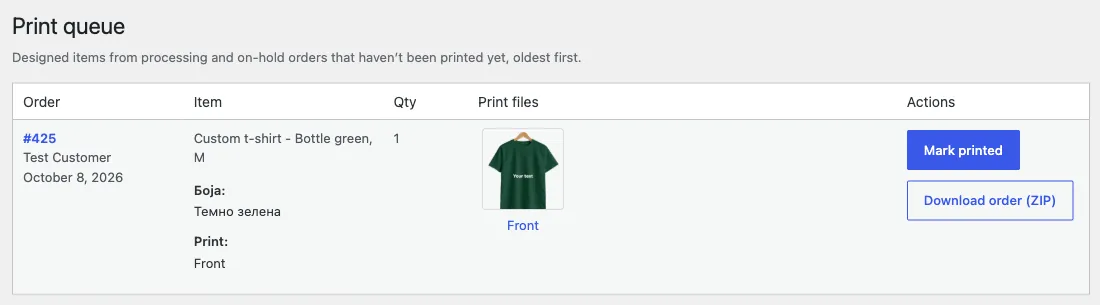
- Mark printed takes an item off the queue; an order note records it.
- Download order (ZIP) gives all print files of an order in one ZIP, with a print list of products, colours, sizes and print sizes.
Your own fonts
- Install fonts in WordPress’s Font Library (upload font files or install them from a collection).
- Open WooCommerce › Settings › PrintBlob › Fonts and choose the fonts customers can use in the designer.
- Untick Keep Onest, Unbounded, Lora and Caveat in the font menu too to offer only your fonts.
The designer shows text in the real font files, and the print files use the same files.
Updates and support
Activate your licence under WooCommerce › Settings › PrintBlob › Licence for automatic updates and priority support. See Licence and updates.