Print-ready PNG, PDF and SVG files and the print queue
PrintBlob keeps every order's design with the order: the design, its preview on the product and the customer's own images. PrintBlob Pro turns each printed side into print-ready files at exactly the print area's size, a transparent PNG at 300 DPI, a vector PDF and an SVG, and, once you upload the ICC profile your printer gives you, a CMYK PDF, and adds a print queue that lists every designed item still to print, oldest first, with each order's files in one ZIP.
Free, with more in PrintBlob Pro
Published , updated , by the PrintBlob team.
Free or Pro?
- Free Every order’s design kept with it: the design itself, its preview on the product, and the customer’s images.
- Free WooCommerce’s block cart and checkout, order emails and custom order tables.
- Pro Print-ready files of every order, earlier orders too: a 300 DPI PNG, a vector PDF and an SVG per side, a CMYK PDF through your printer’s profile, and the customers’ original images.
- Pro A print queue, with each order’s print files in one ZIP.
What does the free plugin keep with an order?
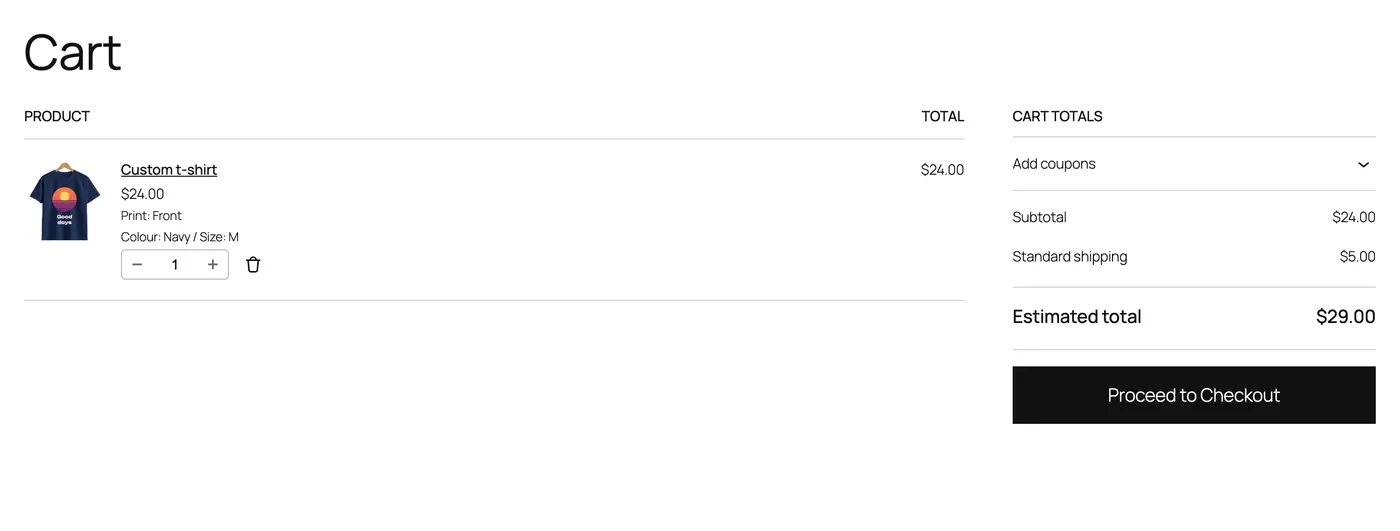
Every designed item in the cart and the order carries its design: the design itself, a preview of it on the product for each printed side, and the images the customer uploaded. The cart, the checkout, the order emails and the order screen show the preview, which sides are printed, the colour and the size. PrintBlob works with WooCommerce’s block cart and checkout and with its custom order tables (High-Performance Order Storage).
What does PrintBlob Pro add?
The print files. When the customer adds the design to the cart, their browser renders each printed side at exactly the print area’s size, three ways:
- a transparent PNG at 300 DPI, the resolution printers usually ask for, for DTG, DTF and transfers;
- a vector PDF and an SVG whose page is the print area’s size in millimetres: typed text as outlines in the customer’s font, emoji and SVG clipart as vector art, and the customer’s images embedded as they uploaded them.
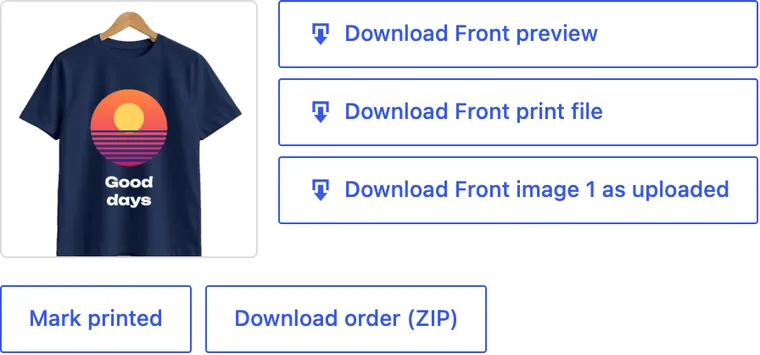
The order screen has Download Front print file (the PNG), Download Front PDF and Download Front SVG (and the same for the back and the sleeves), and a download for each of the customer’s original images, as they uploaded them.
CMYK print files. For printing offset or screen, turn on CMYK print files under WooCommerce › Settings › PrintBlob and upload the ICC profile your printer gives you for its press and paper; PrintBlob ships none, because their makers do not allow them to be passed on. The print queue then also makes each side’s PDF in CMYK: its colours and the customer’s images converted through your profile, and the profile embedded and named in the file. Brand colours you define there in CMYK print exactly as you define them. See CMYK print files.
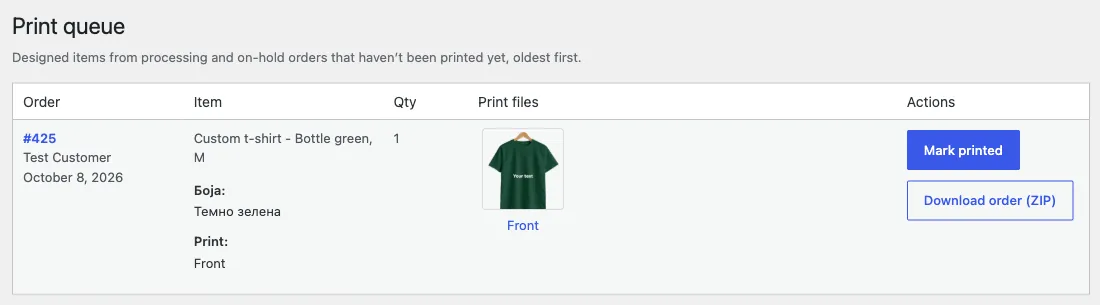
The print queue. PrintBlob › Print queue lists what is still to print across all orders, oldest first, with previews and files. Download order (ZIP) gives an order’s print files in one ZIP, each named with its order item, with a print list: each item’s quantity, product, colour and size, and the file and print size of each side.
Who is it for?
Anyone who prints the orders themselves or sends them to a printer: the files are the print, at its real size, with no retouching and no export from a design tool. The PNG goes to a DTG printer or onto a DTF gang sheet; the PDF and SVG go to a screen printer, a cutter or a printer that asks for vector files. Shops with several orders a day work from the queue rather than from each order.
What are the limits?
PrintBlob does not make colour separations for screen printing, Pantone or spot colours, bleed or crop marks, or DXF files for engraving; the guide DTF vs DTG vs screen printing explains what each method needs. Typed text is part of the PNG and outlines in the PDF and SVG, so it prints in the customer’s font on any machine but a printer cannot retype it; a customer’s photo stays the image they uploaded, so a vector file does not make it sharper. The customer’s own images are there in full if a design needs remaking. The CMYK PDF is made in the print queue, in your browser, not at add to cart, and only once you have uploaded a profile.
How does an order get to the printer?
- The customer adds the design to the cart. With PrintBlob Pro, the browser renders each printed side at the print area's size as a transparent PNG at 300 DPI, a vector PDF and an SVG, and the design is saved with the cart item.
- The order is placed. The order keeps the design, a preview per printed side and the customer's original images, in WooCommerce's order screen and emails.
- Open the print queue. With PrintBlob Pro, PrintBlob › Print queue lists the designed items of processing and on-hold orders not yet printed, oldest first.
- Download the files. Download order (ZIP) gives every print file of the order and a print list of products, colours, sizes and print sizes.
- Print and mark it. Mark printed takes the item off the queue and records it in an order note. Undo puts it back.
Try it in the live demo
The print file of an order. What PrintBlob Pro makes when a customer adds a design to the cart: a transparent PNG of each printed side at 300 DPI, exactly the print area’s size (3307 × 4252 pixels for the front), and the preview the cart and the order show; in a shop it also makes a vector PDF and an SVG of each printed side. In the demo the PNG and the preview open in a window to download, marked “printblob.com” in a corner; a shop’s own files carry no mark.
Set it up
- PrintBlob Pro
PrintBlob Pro adds print-ready files of every order (a 300 DPI PNG, a vector PDF and SVG, and a CMYK PDF through your printer's profile) with the customers' original images, your own products and photos, back and sleeve printing, a 3D view, design templates, a clipart library, quantity breaks, names and numbers for team orders, a print queue with ZIP downloads, and your own fonts.
- Mockups
A mockup is a product photo for each printable side, with its print area and the real print size in centimetres. PrintBlob Pro makes every order's print files at that size: a 300 DPI PNG, a vector PDF and an SVG.
- Products
To sell a product with the designer, open the product's PrintBlob designer tab, turn the designer on, choose its mockup and set a print price for each printed side.
- Print-ready t-shirt files: format, transparency and resolution
What makes a t-shirt print file ready to print: a transparent PNG at 300 DPI at the printed size, or a vector file where the method takes one. Why customer photos print blurry, why backgrounds print as boxes, and what DTG, DTF, screen printing, vinyl and embroidery each need from you.
- DTF vs DTG vs screen printing for a small print shop
How DTF, DTG and screen printing work, the file each one needs, where their costs and minimums come from, and which suits one-off designs that customers make in an online shop.
- WooCommerce order statuses for a print shop: custom statuses for artwork, printing and pickup
What WooCommerce's own order statuses mean for a shop that prints customers' designs, which emails each one sends, how to add a custom order status such as Awaiting artwork or Ready to collect with a plugin or code, and how custom statuses work with a print queue.
Questions
What size is a print file?
Exactly the print area's size: a 28 × 36 cm area gives a PNG of 3307 × 4252 pixels at 300 DPI and a PDF and SVG page of 280 × 360 mm. The PNG is transparent, and the PDF and SVG hold only the design, so only the design prints.
Does PrintBlob Pro make files for orders placed before I added it?
Yes. The free plugin keeps every order's design, so Pro's print queue makes the print files of earlier orders from their saved designs: the PNG, the PDF and the SVG.
Who can download print files and customers' images?
Only shop managers. They are stored in a protected folder on your own site; no outside service holds them.
Are the print files in CMYK?
The PNG, the PDF and the SVG are RGB. Turn on CMYK print files and upload the ICC profile your printer gives you, and the print queue also makes each side's PDF in CMYK, converted through that profile and naming it; brand colours you define in CMYK print exactly as you define them. There is no Pantone or spot colour.
Get PrintBlob Pro
Pro adds print-ready files, back printing, a 3D view and a production print queue to the free designer. Paid with Stripe in US dollars, no tax added; one domain per licence.
$69 a year
Full refund within 14 days
Limited-time offer until 31 December 2026
$99 once
Full refund within 14 days
Try it on your own shop
PrintBlob is free in the WordPress.org plugin directory: install it, turn the designer on for a product and take a design order. PrintBlob Pro is $69 a year or $99 once (limited-time offer until 31 December 2026), with a full refund within 14 days.