Sell custom hoodies, mugs, tote bags and caps in WooCommerce
How to add hoodies, mugs, tote bags and caps next to t-shirts in a WooCommerce shop with a product designer: what changes for each product, its print areas and sizes, the photos it needs, and how to set each one up as a variable product with its own mockup.
Published , updated , by the PrintBlob team.
To sell custom hoodies, mugs, tote bags and caps in WooCommerce, set each one up as you would a custom t-shirt: a product with its colours and sizes, a product designer on its page, a photo and a print area for each printed side, and a price for each printed side. What changes is the product itself: where it can be printed, how big, how you photograph it, and how you print it.
Once custom t-shirts sell, these are the next products customers ask for. This guide goes through each one, then sets them up.
It assumes a shop that already sells one designed product. If you are starting from nothing, how to sell custom t-shirts with WooCommerce covers attributes, variations and the designer first.
What each product needs
Every designed product comes down to four things:
- Printable sides. Which faces of the product customers can design on.
- A print area and print size per side. Where on the photo the print can go, and how big that is in centimetres on the real product.
- A photo per side. Ideally of a white or light product, so one photo can show every colour.
- A price per printed side, on top of the blank’s own price.
In PrintBlob, these live in a mockup (PrintBlob › Mockups): a photo for each side, the print area drawn on the photo and the real print size in centimetres. Each product chooses one mockup, so a hoodie, a mug and a tote bag each get their own. Your own products and photos come with PrintBlob Pro: its mockup editor makes them, with Front, Back, Left sleeve and Right sleeve, each switched on or off with Customers can print on this side. The free plugin prints on the front of its bundled t-shirt.
The sizes below are examples; each product’s guide to design sizes, linked in its section, has the sizes printers publish for every placement. Measure your own blanks and ask your printer or transfer supplier for their limits: the numbers that matter are the ones your press and your products allow.
Hoodies
A hoodie prints much like a t-shirt, with two things in the way: the front pocket and the drawstrings.
- Front: the print sits between the bottom of the drawstrings and the top of the pocket, so it is shorter than a t-shirt’s front, about 12 × 9 in (30.5 × 22.9 cm). Measure that gap on your smallest size, leave a margin, and use it as the print height. Every hoodie and sweatshirt placement is in what size a hoodie design should be.
- Back: usually the largest print area of any garment you sell, because the back is flat and uninterrupted below the hood.
- Sleeves: a long sleeve can take a tall, narrow print. Sleeve printing is a PrintBlob Pro feature; each sleeve has its own photo, print area and size, starting at 9 × 9 cm.
- Printing: thick fleece and seams near the pocket make pressing harder. DTF transfers are often used on hoodies because they press well onto heavier and blended fabrics; see DTF vs DTG vs screen printing.
Photograph the hoodie the way you photograph shirts: on a hanger or flat, front and back from the same spot, hood arranged the same way in both. Photographing t-shirts for a product designer applies to hoodies as it is.
Mugs
A mug is printed flat and wrapped round the mug. Most mugs are printed by dye sublimation, which only takes on mugs with a polymer coating, so buy blanks sold for sublimation. An 11 oz mug’s full wrap is about 8.5 × 3.5 in (21.6 × 8.9 cm), and blanks and printers differ; the wraps they publish, and where the handle leaves its gap, are in mug design size.
A product designer shows a photo, and a photo of a mug shows one side of it. Two ways to set up a mug:
- One side. A mockup with only Front switched on: a photo of the mug with the handle to one side, and a print area that covers the face you can see, at its real size (for example 9 × 8 cm). Simple, and what most customers expect from a photo or a name on a mug.
- Two sides. Front and Back as the two faces either side of the handle, each with its own photo, print area and price. The designer still calls them Front and Back, so say in the product description which side of the handle each one is.
Either way, each printed side arrives as its own print file, sized to that side. You place those files on your sublimation template, so check your template’s layout once with a test mug before you take orders.
Turn off recolouring for white mugs, or leave it on if you sell coloured mugs and photograph a white one. If you use PrintBlob Pro, keep its 3D view for garments: it shows the product as a garment on a hanger. A mockup with one side shows no 3D button; for a two-sided mug, set Product view to Front and back only (2D) on the mug’s PrintBlob tab.
Tote bags
A tote bag is the easiest second product: a flat panel on each side, no seams across the print area.
- Print area: a square or slightly upright area in the middle of the bag, kept clear of the handles and the bottom seam, about 10 × 10 in (25.4 × 25.4 cm) on a standard tote. The sizes printers publish are in tote bag print size.
- Sides: both sides are usually printable. Many shops offer the front only and charge for the back as an extra side.
- Colour: natural cotton totes are not white. If you recolour a white bag photo to a “Natural” colour value, check it against a real bag; photograph the natural bag separately if the colour is off.
- Printing: cotton canvas suits DTG and DTF. Heavy canvas needs firm, even pressure from the heat press.
Caps
Caps are the product where a flat print file fits least well, so decide how you will decorate them first.
- Front panel only, in most cases. Turn Back off in the cap’s mockup, or use it for a small print above the strap.
- Small print areas. A structured cap’s front takes a logo up to about 4 × 2 in (10.2 × 5.1 cm); every placement, for embroidery and print, is in hat logo size. One DTF supplier recommends transfers of about 2 to 3.5 inches wide (5 to 9 cm) for structured caps and up to 4.5 inches (11.4 cm) for low-profile or unstructured styles, and says designs over 3 inches wide on structured caps need a dedicated cap press.
- Embroidery is common on caps. A PNG print file is not an embroidery file: a digitiser turns the design into stitches. If you embroider, a designer still helps customers place and size their logo, and you send the print file to your digitiser.
Photograph the cap from the front, square on, with the front panel filling a good part of the frame, so the print area is large enough to design on.
Set them up in WooCommerce
The steps are the same for every product.
- Colours. PrintBlob reads colours from one shop-wide colour attribute (set under WooCommerce › Settings › PrintBlob). Hoodies, mugs and bags share its terms: add any colours the new products need, each with its Colour value (see Colours). A product only offers the terms you add to it.
- Sizes. Use the shop’s size attribute for garments. Mugs, totes and one-size caps don’t need one; a simple product works, or a variable product with colour only.
- The mockup (PrintBlob Pro). Under PrintBlob › Mockups › Add mockup, give it a name like “Hoodie” or “Mug”, then for each side tick Customers can print on this side, choose the photo, drag the print area over the printable part and enter Print width (cm) and Print height (cm). Tick recolouring if the photo is of a white or light grey product. See Mockups.
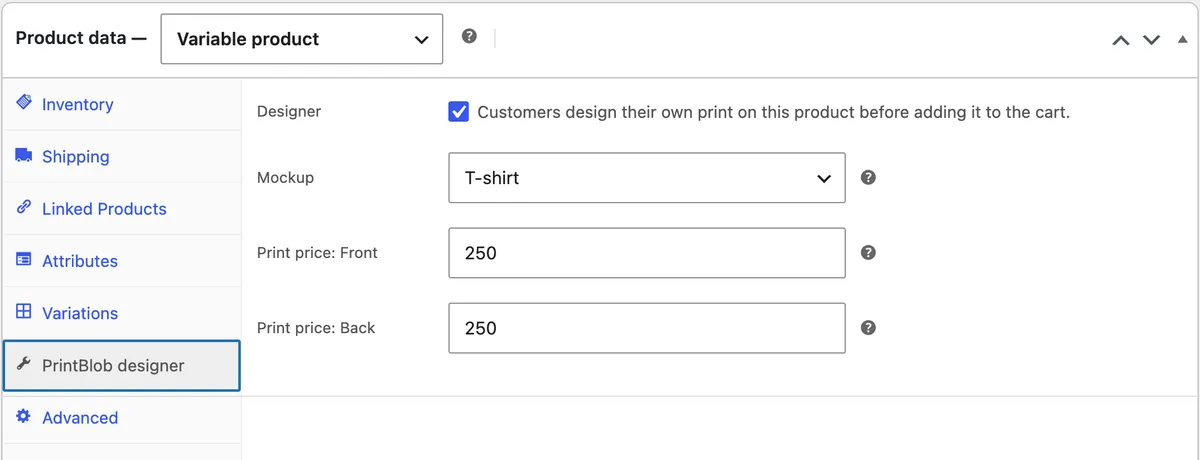
- The product. Create it as a variable product (or a simple one), add its colours and sizes as variations with their prices and stock, then open Product data › PrintBlob designer, tick Designer, choose the new mockup and enter the print price for each side. See Products.
- Test it. Design one of each product with an image and text, order it, download the print files from the order and print them. Check the print lands where the designer showed it, at the size you expected.
Pricing several products
Blanks differ far more than prints. A hoodie costs several times what a t-shirt does, while the print on its front may cost you about the same. Keep the blank’s cost and margin in the variation price, and price each printed side by what printing it costs you. A mug’s print, which uses a whole sublimation sheet, is priced differently from a chest print on a tote. How to price custom t-shirt printing walks through the method, and it applies to every product here.
Questions shop owners ask
What does each product need before customers can design it?
The sides customers can print on, a print area and a real print size for each side, a photo of each side, ideally of a white or light product so that one photo shows every colour, and a price for each printed side on top of the blank’s own price.
Can customers design hoodies, mugs and tote bags with PrintBlob?
With PrintBlob Pro, which adds your own products and photos: each product gets a mockup with its own photos, print areas and print sizes for the front, the back and the sleeves. The free plugin prints on the front of its bundled t-shirt.
How do I set up a mug with a print on both sides?
Switch on Front and Back in its mockup as the two faces either side of the handle, each with its own photo, print area and price, and say in the product description which side of the handle each one is. Each side arrives as its own print file, which you place on your sublimation template.
Can a cap be embroidered from a print file?
Not directly: a PNG print file is not an embroidery file, and a digitiser turns the design into stitches. A designer still helps customers place and size their logo, and you send the file to your digitiser.
How should I price hoodies and mugs next to t-shirts?
Keep the blank’s cost and margin in the variation price, and price each printed side by what printing it costs you. A hoodie costs several times what a t-shirt does, while the print on its front may cost you about the same.
Next steps
- Measure each product properly: print areas and print sizes per product.
- Set up the mockups: Mockups in the PrintBlob docs.
- Merch that fans personalise on a brand’s own products: a merch shop for a brand or a creator.
- A shop built on one of these products: a mug printing business and a custom cap and hat business.
- Try the designer to see how a mockup’s print area and sides look to customers.
Get PrintBlob Pro
Pro adds print-ready files, back printing, a 3D view and a production print queue to the free designer. Paid with Stripe in US dollars, no tax added; one domain per licence.
$69 a year
Full refund within 14 days
Limited-time offer until 31 December 2026
$99 once
Full refund within 14 days