WooCommerce colour swatches for t-shirts: swatch plugins, variation photos or one recoloured photo
How a WooCommerce shop shows a t-shirt's colours: what WooCommerce does on its own, what a variation swatches plugin adds, why every colour then needs its own photo, what changes past 30 variations, and how a product designer shows every colour from one white photo.
Published , by the PrintBlob team.
WooCommerce shows a t-shirt’s colours as a dropdown or as buttons with the colours’ names, depending on the theme, so round swatches in each colour need a variation swatches plugin, and a picture that changes with the colour needs a photo on every variation. For a shirt sold in many colours, that is a photo of every colour, and past 30 variations WooCommerce’s choices stop narrowing to the combinations that exist. A product designer can do both jobs differently: PrintBlob’s designer shows its own colour swatches and recolours one photo of a white shirt to every colour, so a new colour is a new attribute term, not a photo shoot.
This guide covers what WooCommerce does with colours on its own, what a swatches plugin adds, and how a designer product shows them. WooCommerce’s behaviour below was checked against its documentation and the source code of WooCommerce 11.2.1 on 21 October 2026.
How WooCommerce shows colours on its own
A t-shirt in several colours and sizes is a variable product: a global Colour attribute and a Size attribute under Products › Attributes, both used for variations, and one variation for each colour and size, each with its own price and stock.
- The choice. WooCommerce’s documentation on variable products says: “Depending on the active theme, these options may appear as dropdowns or buttons.” Either way the customer reads the colour’s name, Navy or Bottle green, not the colour.
- The photo. “Each variation can have its own primary image”, and since WooCommerce 11.1 a variation can have a gallery of several. When the customer has chosen a variation, WooCommerce swaps the product’s gallery to that variation’s images. A colour with no image on its variations shows the product’s main photo.
- Past 30 variations. Up to 30 variations, each choice “narrows the other options to those that are available”. Above that, WooCommerce’s documentation says “the drop-downs will be static”: every colour and size is listed, and a combination that does not exist is answered with “Sorry, no products matched your selection. Please choose a different combination.” The number is the
woocommerce_ajax_variation_thresholdfilter’s default, which a developer can raise. A shirt in 12 colours and 6 sizes is 72 variations.
What a swatches plugin adds
A variation swatches plugin turns the colour choice into round or square patches of each colour. You give each colour term its colour on the attribute’s terms screen, and the plugin shows those patches in place of the dropdown on the product page.
The two with the most active installs in the WordPress.org directory, read on 21 October 2026, were Variation Swatches for WooCommerce by Emran Ahmed (300,000+) and Variation Swatches for WooCommerce – Color, Image & Size Swatches (200,000+). The first one’s page lists colour, image and button swatches as free, and swatches on shop and category pages and changing the gallery when an attribute is chosen as features of its paid version.
A swatch changes what the customer chooses, not what they see. The photo still comes from the variations: without a photo of the shirt in every colour, a customer who clicks Bottle green still looks at a white shirt.
A photo of every colour
Photographing every colour is the cost that grows with the range. Each colour needs its front, often its back, taken in the same light and from the same place so that switching colours does not move the shirt, and every variation of that colour needs the photo set. A new colour from your supplier is a new photo shoot. Photographing t-shirts for a product designer covers taking photos that match.
Every colour from one white photo
A product designer that recolours photos needs one photo of the shirt in white. In PrintBlob, which is free, the designer recolours that photo to the colour the customer chooses, in the customer’s browser, keeping the folds and the shading of the fabric. Text the customer has not given a colour of its own switches between dark and white ink, so it stays readable.
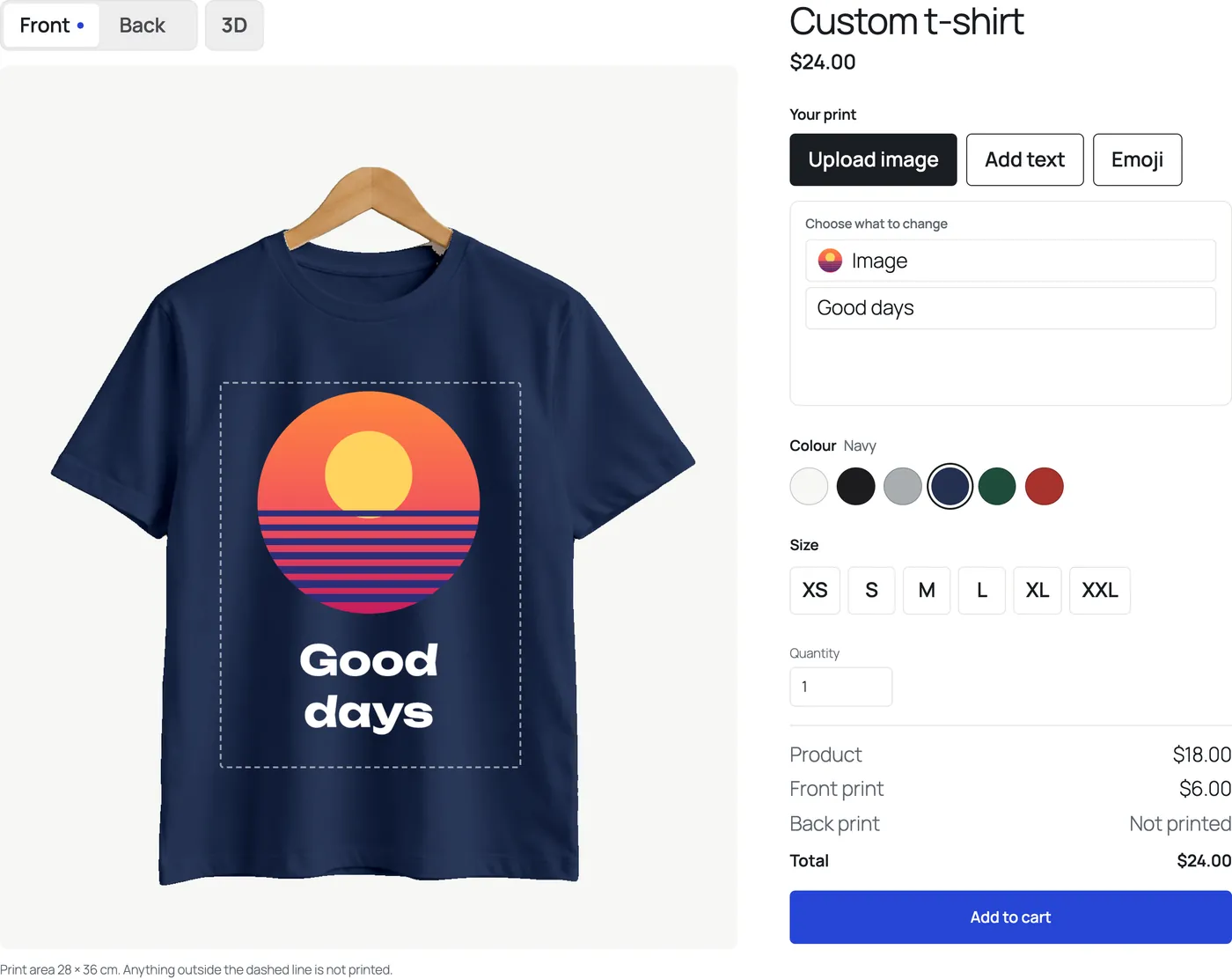
Where the colours come from:
- The colour attribute. PrintBlob reads the colours from the attribute set as Colour attribute under WooCommerce › Settings › PrintBlob.
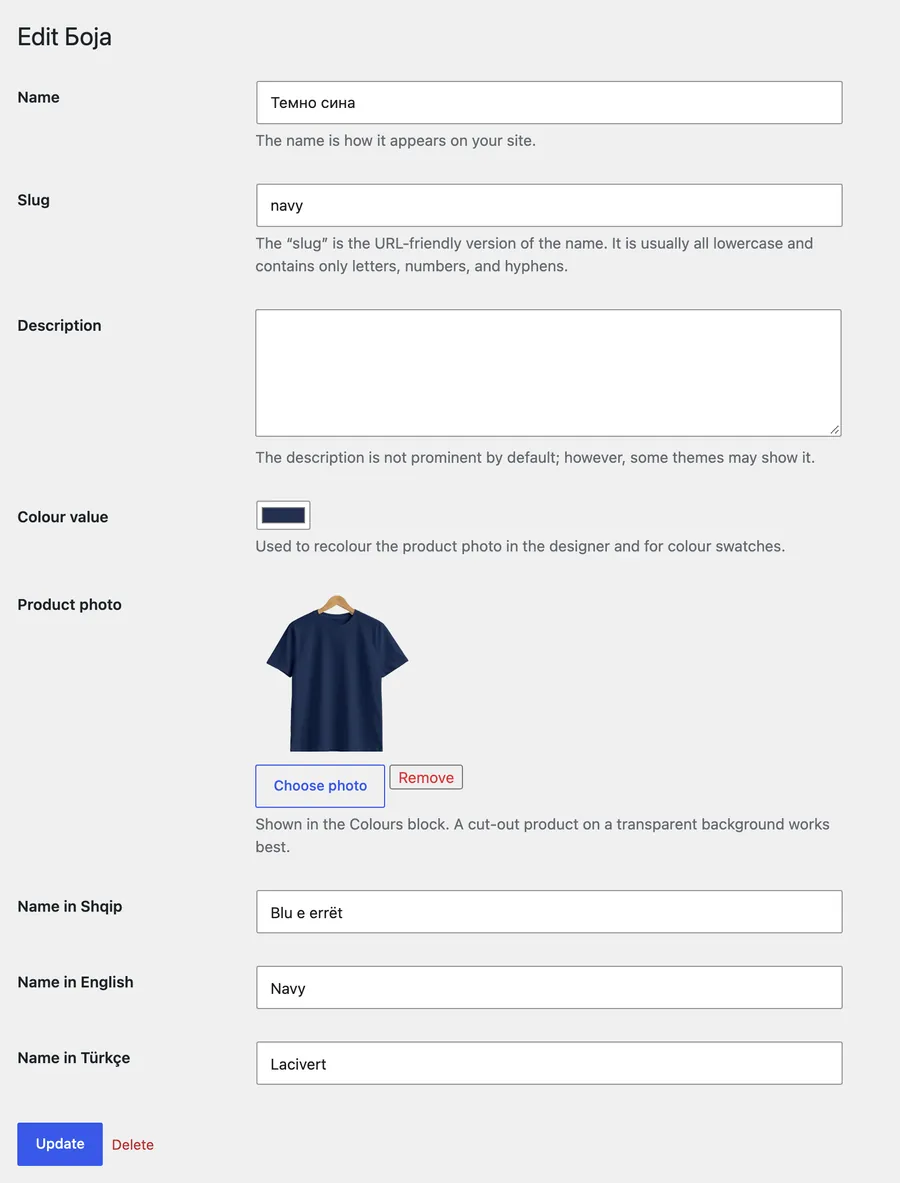
- Each colour’s value. Each term of that attribute has a Colour value field, which the designer recolours the photo to and draws its swatch in, and an optional Product photo for the Colours block. PrintBlob reads its own Colour value, not a swatches plugin’s colour, and a term without one shows as white.
- The variations. The designer shows the colours as swatches and the sizes as buttons, keeps sold-out combinations unavailable and adds the matching variation to the cart. It reads every variation of the product when the page opens, so this holds above 30 variations too.
PrintBlob › Quick setup makes all of this in one step: a colour attribute with the bundled t-shirt’s six colours and their colour values, a size attribute, a variable product on the bundled t-shirt with a variation for every colour and size, and a page with the designer.
The Colours block shows the colours you sell on any page, as a rail or a row. Each colour opens the designer in that colour, which gives a shop page the swatches a swatches plugin would otherwise put there.
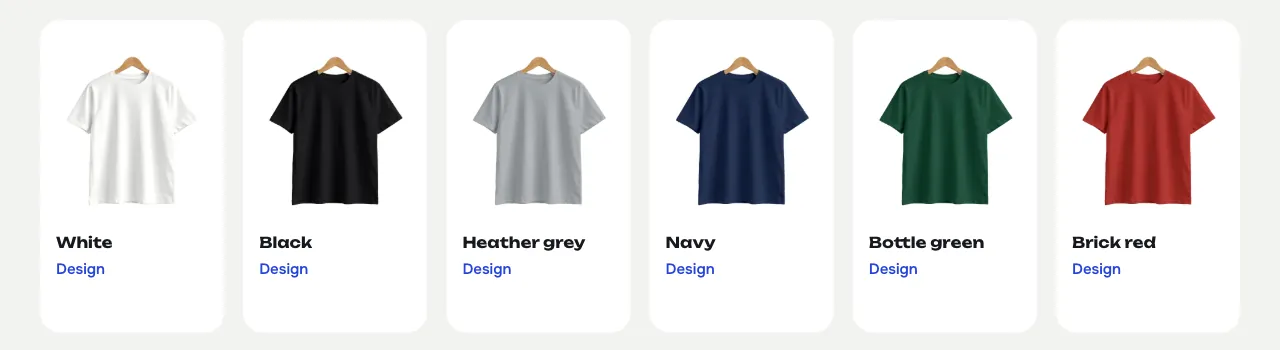
In the free plugin, customers design on the front of PrintBlob’s bundled t-shirt, whose photo is white and set to recolour. With PrintBlob Pro, your own products and photos recolour the same way when their mockup has Recolour the photo to the colour the customer picks ticked.
Swatches plugins and variation photos on a designer product
On a product with PrintBlob’s designer turned on, the designer takes the place of WooCommerce’s product photos and summary. So:
- a swatches plugin’s swatches do not show there, because they replace a dropdown the designer product does not have. The designer’s own swatches take their place;
- variation photos do not show there, because the designer shows the recoloured mockup instead;
- products without the designer are not affected: a swatches plugin and variation photos work on them as they did.
The limits of recolouring
Recolouring makes a solid colour with the photo’s shading. It needs a photo of a white or light grey product, evenly lit, and it does not add a heather’s texture or a pattern; labels, hangers and backgrounds in colour keep theirs. A colour that recolouring cannot match, such as a heather, a tie-dye or a shirt with contrast trim, is photographed separately and given a mockup of its own with Recolour the photo unticked, which needs PrintBlob Pro’s own products.
How to set up a t-shirt’s colours
- Make the attributes. Under Products › Attributes, add a Colour attribute with a term for each colour you stock, and a Size attribute with its sizes. Use global attributes, not ones typed on a single product, so that a swatches plugin or a designer can read the colours.
- Give each colour its value. Open the colour attribute’s terms and give each one its colour: in a swatches plugin, the colour field it adds; with PrintBlob, the Colour value field, once the attribute is chosen as Colour attribute under WooCommerce › Settings › PrintBlob.
- Make the variations. On the variable product, add both attributes with Used for variations ticked, create a variation for every colour and size, and give each its price and stock. PrintBlob › Quick setup does this for the bundled t-shirt.
- Add the photos. Without a designer, set a photo on every variation of each colour, with the variation’s image placeholder or, since WooCommerce 11.1, its Variation gallery. With PrintBlob’s designer, the white photo on the mockup is recoloured to every colour.
- Check the product page. Open the product as a customer, choose each colour and a size, and check the photo, the price and that a sold-out combination cannot be added. Above 30 variations, WooCommerce’s own choices no longer narrow to the combinations that exist.
Questions shop owners ask
How do I add colour swatches in WooCommerce?
With a variation swatches plugin: give each term of the colour attribute its colour, and the plugin shows patches of colour in place of the dropdown. WooCommerce on its own shows the colours as a dropdown or as buttons with their names, depending on the theme.
Do I need a photo of every t-shirt colour?
For WooCommerce’s own variation photos, yes: the picture changes only to a variation’s own image. With a product designer that recolours photos, such as PrintBlob, no: one photo of the shirt in white is recoloured to each colour’s value, keeping the folds and the shading.
Why don’t the colour and size choices narrow down on my WooCommerce t-shirt?
The product has more than 30 variations. Above that number WooCommerce lists every colour and size and checks the combination only once it is chosen. A developer can raise the number with the woocommerce_ajax_variation_threshold filter. PrintBlob’s designer reads every variation and keeps sold-out combinations unavailable at any number.
Do swatches plugins work with PrintBlob?
On products without the designer, yes, as they did. On a product with the designer, the designer takes the place of WooCommerce’s photos and summary and shows its own colour swatches, drawn in each term’s Colour value, instead of the plugin’s.
Can a WooCommerce variation have more than one photo?
Since WooCommerce 11.1, yes: a variation has a primary image and a Variation gallery, and WooCommerce swaps the product’s gallery to that variation’s images when the customer chooses it.
Is recolouring part of the free plugin?
Yes. The free plugin recolours its bundled white t-shirt to every colour and has the Colours block. PrintBlob Pro recolours your own products’ photos the same way.
To see recolouring and the designer’s swatches, change the shirt’s colour in the live demo. For the rest of a t-shirt shop’s set-up, read How to make a custom t-shirt website with WooCommerce.
Get PrintBlob Pro
Pro adds print-ready files, back printing, a 3D view and a production print queue to the free designer. Paid with Stripe in US dollars, no tax added; one domain per licence.
$69 a year
Full refund within 14 days
Limited-time offer until 31 December 2026
$99 once
Full refund within 14 days