WooCommerce personalised product plugins: product add-ons or a product designer
Which kind of plugin a WooCommerce shop needs to sell personalised products: a product add-ons plugin with a text field or a file upload, or a product designer where the customer places their text and images on the product. What each does, which products each fits, the work each leaves you per order, and using both in one shop.
Published , updated , by the PrintBlob team.
A WooCommerce shop sells personalised products with one of two kinds of plugin: a product add-ons plugin, which adds fields such as a text box or a file upload to the product page and attaches what the customer enters to the order, or a product designer, where the customer places their text and images on a picture of the product and sees the result before ordering. Add-ons fit personalisation whose look you decide: a name engraved in a set font and place, a gift message, a choice with a price. A designer fits personalisation whose look the customer decides: where a logo sits on a shirt, how big a photo prints, what a slogan looks like in the colours they chose. A shop can use both, on different products.
WooCommerce has neither built in. This guide sets the two kinds side by side, then covers which products each fits and the work each leaves you on every order. For text in detail, read Add custom text to WooCommerce products; for logos and photos, Let customers upload a logo or photo to a WooCommerce product. Designer plugins are compared one by one in the comparisons.
What a product add-ons plugin does
A product add-ons plugin adds fields to the product page, above Add to cart. What the customer enters goes into the cart and the order with the item, and each field can change the price.
WooCommerce’s own Product Add-Ons, a paid extension on the WooCommerce Marketplace, is a typical one. Its documentation, read on 21 October 2026, lists these fields: multiple choice, checkboxes, short text, long text, file upload, a price the customer enters, a quantity, a date picker, and headings to group them. Each option’s price is a flat fee, a price per item ordered, or a percentage of the product’s price, and the text fields can limit how many characters the customer types. Free add-ons plugins in the WordPress.org directory do the same kind of thing; among the first results of a search for “product add-ons” there that day were YITH WooCommerce Product Add-Ons (20,000+ active installs), Product Addons for WooCommerce (30,000+) and Flexible Product Fields (10,000+). Check the field types and prices you need in each plugin’s own description.
What an add-ons field collects is the entry, not its layout. The customer types “EMMA” or picks a file; the font, the size and the position are yours to decide, or theirs to describe in another field. WooCommerce’s Product Add-Ons documentation describes no preview of the entry on the product’s photo, so look for one in a plugin’s description if you need it.
What a product designer does
A product designer replaces the fields with the product itself: the customer adds text and images onto a photo of the product, moves, resizes and rotates them inside the print area, chooses the product’s colour, and orders what they see. You receive the design already laid out.
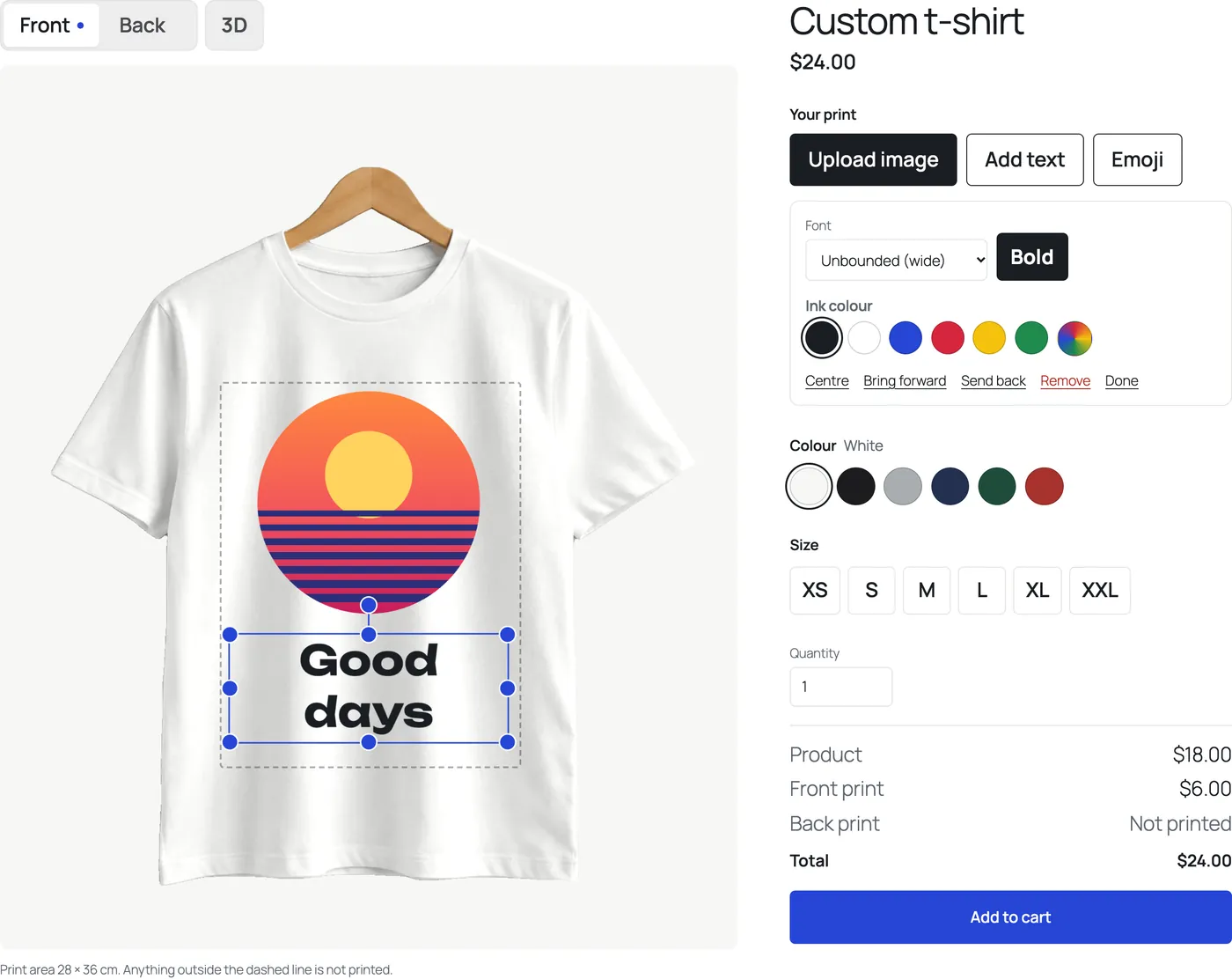
PrintBlob, the product designer for WooCommerce, is free. With it, customers:
- design on the front of PrintBlob’s bundled t-shirt, in every colour you sell, recoloured from one photo;
- upload photos and logos, and type text on the product in four bundled fonts;
- see a warning when an image is below 150 DPI at the size they placed it, so a blurry print shows up before the order.
Every order keeps its design: the design itself, its preview on the product and the customer’s images. PrintBlob Pro adds your own products and photos, such as hoodies, mugs and bags, back and sleeve printing with their own prices, print-ready files of each printed side (a 300 DPI PNG, a vector PDF and an SVG), a print queue, your own fonts, design templates, a clipart library, names and numbers for team orders and a 3D view of the product.
What PrintBlob does not do: it does not curve text, and the free plugin has no clipart, templates or names and numbers, which are PrintBlob Pro’s. Team and group orders with names and numbers covers team orders.
Which one fits which product
| Personalisation | Product add-ons field | Product designer |
|---|---|---|
| A name or initials engraved in a set font and place | Fits: one short text field, with a character limit | More than it needs |
| A gift message on a card or a note in the parcel | Fits: a long text field | Does not fit: the message is not printed on the product |
| A logo on a t-shirt, sized and placed by the customer | The customer cannot see the size or the place; you decide both | Fits: the customer places it and sees it on the shirt |
| A photo printed on a shirt or a mug | Collects the file; you find out whether it is large enough | Fits: the customer sees it on the product, with a warning when it is too small |
| A slogan in the customer’s own layout and colours | Needs fields for the font, the size and the colour, and you set it from them | Fits: the customer types it on the product |
| A paid choice, such as gift wrap or a faster turnaround | Fits: a checkbox or a choice with its price | Not a designer’s job: see Using both in one shop |
The question that decides it: who decides what the finished product looks like? When you do, and the customer only supplies words or a choice, add-ons are enough and quicker to set up. When the customer does, a field leaves the decision with you, and a designer gives it to them.
The work each leaves you on every order
With add-ons, every personalised order arrives as words and files beside a product. Someone lays it out: picks the size, places it, checks that an uploaded image is large enough and has no white box around it, and often emails a proof before printing. Artwork approval for custom prints covers what those proof rounds cost and when they are still worth it.
With a designer, the set-up is per product: a photo of each printed side and its print area in centimetres. PrintBlob’s bundled t-shirt comes with both, and PrintBlob › Quick setup makes a t-shirt product with its colours and sizes in one step. After that, each order arrives laid out by the customer. With PrintBlob Pro, each printed side also arrives as a transparent PNG at 300 DPI and as a vector PDF and SVG, ready for the printer; Print-ready t-shirt files explains what that means.
Using both in one shop
On different products, yes: add-ons on the products with a set layout, such as engraved gifts, and the designer on the products customers lay out themselves, such as t-shirts.
On the same product, no. On a product with PrintBlob’s designer turned on, the designer takes the place of WooCommerce’s product summary and its Add to cart form, and adds the item to the cart itself, so fields an add-ons plugin puts in that form do not show there. The designer has the product’s own choices instead: colour and size in the free plugin, and with PrintBlob Pro every other attribute the product’s variations use, such as material or fit, each variation with its own price. A paid choice on a designer product is therefore a variation, not an add-on.
Questions shop owners ask
What is the best plugin for personalised products in WooCommerce?
It depends on who decides what the finished product looks like. A product add-ons plugin fits when you do, and the customer supplies words, a file or a choice. A product designer fits when the customer lays out their text and images on the product.
Can customers see their personalisation on the product with an add-ons plugin?
WooCommerce’s own Product Add-Ons documentation describes no preview on the product’s photo: the customer fills in fields and sees the price. A product designer shows the text and images on the product as they will print.
Is there a free plugin for personalised products?
Yes, of both kinds. Free add-ons plugins in the WordPress.org directory include YITH WooCommerce Product Add-Ons and Flexible Product Fields. PrintBlob is a free product designer: customers design on the front of its bundled t-shirt in every colour, and PrintBlob Pro adds your own products, back and sleeve printing and print-ready files.
Can I use a product add-ons plugin and a product designer in the same shop?
Yes, on different products. On a product with PrintBlob’s designer, the designer takes the place of WooCommerce’s Add to cart form, so an add-ons plugin’s fields do not show there; a paid choice on that product is a variation.
Which is better for customers’ logos and photos?
A designer, when the customer decides the size and the position: they place the image on the product and see it, and PrintBlob warns when it is below 150 DPI at that size. An upload field collects the file, and you decide where it goes and check whether it is large enough.
To try the designer, open the live demo. For the kinds of designer plugin and what each costs, read WooCommerce product designer plugins compared, and for PrintBlob beside one tool at a time, the comparisons.
Get PrintBlob Pro
Pro adds print-ready files, back printing, a 3D view and a production print queue to the free designer. Paid with Stripe in US dollars, no tax added; one domain per licence.
$69 a year
Full refund within 14 days
Limited-time offer until 31 December 2026
$99 once
Full refund within 14 days