Team and group orders with names and numbers in WooCommerce
How print shops take orders where every shirt shares one design but has its own name, number and size: the options WooCommerce gives you, how customers list every person on one design with PrintBlob Pro's names and numbers, how the free plugin takes them one at a time, and how to check each line's print file.
Published , updated , by the PrintBlob team.
To take a team or group order in WooCommerce, let the customer design the shared shirt once and list every person’s name, number and size on it. With PrintBlob Pro’s names and numbers, the list goes into the cart as one item per size, and every line arrives with its own print file, so nothing is retyped. With the free plugin, the customer adds the shirt to the cart once per person instead.
A football team, a hen party, a school trip, a company’s staff: group orders share one design, but each shirt carries its own name or number, and each person wears their own size. They are some of the best orders a print shop gets, and the easiest to get wrong. One misspelt name or a number on the wrong size is a reprint. This guide covers how to take these orders in WooCommerce so that each shirt arrives with its own print file, seen by the customer before they paid.
What a group order really is
Every group order comes down to a list:
| Name | Number | Size |
|---|---|---|
| Jordan | 4 | M |
| Alex | 7 | L |
| Sam | 10 | S |
…plus the shared part: the logo or the event’s artwork, the shirt colour, and where everything sits. The job is to get that list into your shop as orders you can print without retyping anything.
The options in WooCommerce
WooCommerce has no built-in “list of names” field. Shops usually use one of four approaches.
1. A list of names and numbers on the design
The customer designs the shared shirt once, then types the list into the designer: a line for each person, with a name, a number and a size. They see any line on the shirt before ordering, and the whole list goes into the cart together. Each line is printed from its own file, with the name and number where the shop placed them.
This is the quickest for the customer and the safest for you: every name is typed once, by the person who knows it, and seen on the shirt before paying. It needs a designer with a names and numbers list; in PrintBlob it is part of PrintBlob Pro.
2. One cart item per person
The customer designs the shirt once, then adds it to the cart once per person, changing the name, number and size each time. Each person becomes a separate line in the cart and the order, with its own size and quantity.
What the customer sees is exactly what prints, and the order lists every shirt. It takes the customer longer for a big team, and each name is placed by hand, so names and numbers can end up at different heights from shirt to shirt.
3. One design plus a list on the side
The customer orders the shared design in several sizes, then sends the list of names by email or in the order notes. You set each name yourself.
It is quick for the customer and slow for you. Names arrive with typos, numbers don’t match sizes, and the customer never saw the names on the shirt before paying. It works for small runs you check by phone; it doesn’t scale.
4. A quote
For large or complex orders, such as a club’s whole kit with sponsors on the sleeves, many shops skip the online designer and quote directly: a form, a mock-up by email, approval, then an invoice. That suits screen printing, where one design across dozens of shirts is the method’s strength.
Most shops take team orders online with the first or the second approach and keep the other two for orders that need a conversation.
Setting up names and numbers with PrintBlob Pro
A team shirt is an ordinary designed product: a variable product with your colour and size attributes, the designer turned on and a print price per side (see how to sell custom t-shirts with WooCommerce). With PrintBlob Pro, open the product’s PrintBlob designer tab and turn on Names and numbers. Then, for the name and for the number:
- Side: the side it is printed on, such as the back, or Not printed for a shirt with names only or numbers only. The name and the number can go on different sides, such as the name on the back and the number on the front.
- Font and Colour: one of the designer’s fonts, and the colour every line is printed in.
- From the top (cm) and Height (cm): where it sits below the top of the print area, and how tall its capital letters are. Each is centred across the print area. Until you change them, the name starts 4 cm from the top at 6 cm tall and the number 12 cm from the top at 18 cm tall, both on the back.
- Print names in capital letters, if your kit has them.
Every line is printed at the place, height, font and colour you set, so a team’s names and numbers match from shirt to shirt. A side is printed only where it has a print price, and the side the names go on is charged as printed on every item of the list. To give customers the shared design ready to start from, save it as a design template, with the club’s crest already in place.
How the customer orders
- Make the shared design. Upload the team logo, add any fixed text and choose the shirt colour, or start from your template.
- Add a line for each person under Names and numbers, with Add a line: a name of up to 20 characters, a number of up to 3 digits, and a size. A line needs a name or a number, and can have both. A list holds up to 100 lines.
- Check the lines on the shirt. Show on the product draws a line’s name and number on the shirt, where they will print.
- Select Add to cart. The list goes into the cart as one item per size, its quantity the number of lines in that size, each item showing its lines.
An item with names and numbers stays as many as its lines: to add a person, the customer adds a line in the designer. With no line, the design is ordered in the size and quantity chosen, as any other design.
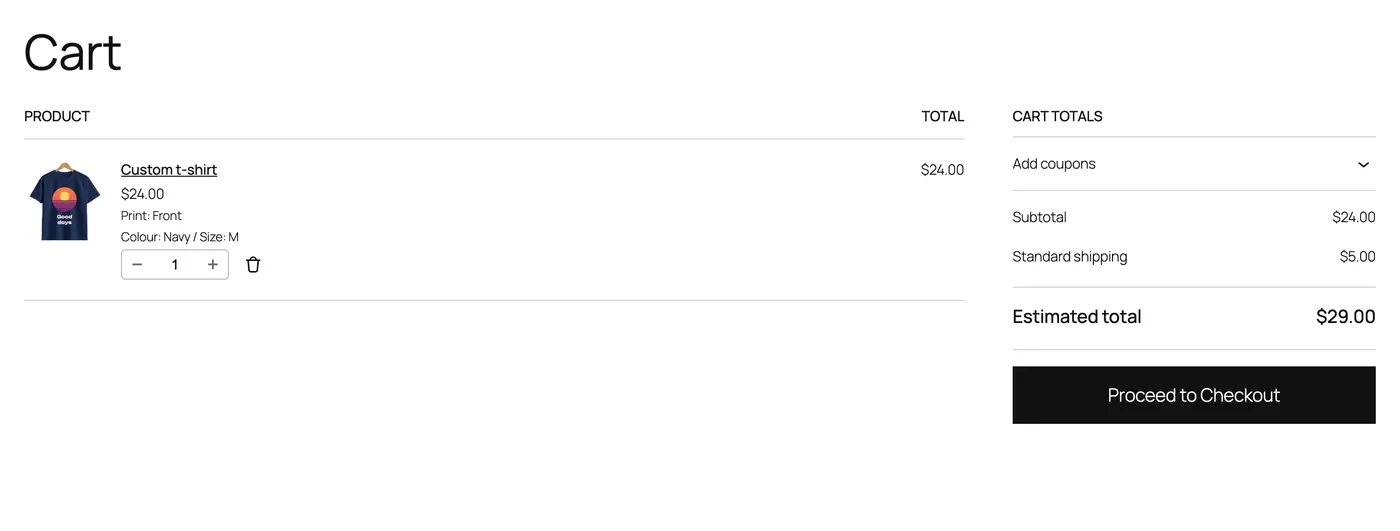
Tell customers on the product page to check every line with Show on the product before adding the list to the cart: what they see is what prints.
With the free plugin
PrintBlob free takes team orders the second way, with no set-up beyond the designer. It prints the front of its bundled t-shirt, so names and numbers go under the logo on the front. PrintBlob saves one design per cart item, so each person’s shirt is its own line in the cart and the order.
- Make the shared design and choose the shirt colour.
- Add the name and the number with Add text. Each is typed straight on the shirt: a new text opens with its words selected, so typing replaces them. New text is centred, bold and in an ink that stands out on the chosen colour; customers can choose the font, bold and the ink colour, drag and resize it, and Centre puts it in the middle of the print area, left to right.
- Choose the first person’s size, leave the quantity at 1, and select Add to cart.
- Change the name, the number and the size in the same design (choose a text in the list, or tap it twice on the shirt, to type over it), and select Add to cart again. The design stays in the designer after it is added, so only the parts that change need editing.
- Repeat for each person. Tell customers to edit the name before each Add to cart: a shirt added twice without changing it is two shirts with the same name.
By default PrintBlob lets one shopper save 30 designs an hour (and 300 from one internet address), since each save stores files on your server. If you take teams larger than that this way, a developer can raise the limits with the printblob_design_save_limits filter. With PrintBlob Pro’s names and numbers, a whole list is one design.
What PrintBlob doesn’t do
There is no spreadsheet import: the lines are typed in the designer. There is no curved or outlined text. Every line’s name and number are printed in the one font, colour and place you set, so a customer cannot move one person’s name on its own, and each of the name and the number is printed on one side.
Name and number sizes
Sports leagues have their own rules, and those come first for match kit. For leisure and event shirts, printers’ guides commonly suggest names of about 5 to 7.5 cm (2 to 3 inches) tall on adult shirts and back numbers of about 15 to 25 cm (6 to 10 inches). With PrintBlob Pro’s names and numbers you set those heights once on the product, and every line is printed at them. Jersey name and number size gives the sizes by sport, with the high-school minimums.
PrintBlob’s designer shows the print area and its real size in centimetres under the product, so a customer typing a long name can judge it against the print area.
Checking the print files
Before printing a group order, go through it line by line.
- Open the order in WooCommerce. Each designed item shows a preview per printed side, its colour and size and its print files, and with names and numbers, its lines: each line’s name, number and size, with its print file.
- Know which file is which. The design’s print files of a side hold the shared design: the crest, the fixed text. Each line’s print file is a transparent PNG at 300 DPI at the same side’s print size, with only that line’s name and number where you placed them, so it lines up with the design’s file of that side: combine the two in your printing software, or press the line’s transfer in the same place after the design’s.
- Read every name and number in its line’s file against the size on that line. The preview on the order screen is a thumbnail, so small text is easier to check in the file.
- Print each line on its own size of shirt.
Download order (ZIP) gives every print file of the order in one ZIP, each named with its order item, and a print list: each item’s quantity, product, colour and size, the file and print size of each side, and which line each line’s file is. The Print queue lists every designed item still to print, oldest first, and Mark printed takes each one off as it’s done.
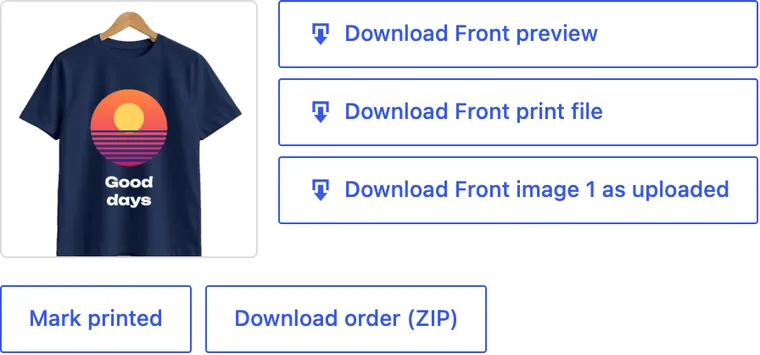
With the free plugin, each person’s shirt is its own item, and the order screen keeps each item’s design, preview and images; the print files and the order’s ZIP are PrintBlob Pro’s.
Pricing group orders
Every named shirt is a separate print, so the price per printed side applies to each, which is fair: each takes its own press time. Shops often charge less for larger groups. With PrintBlob Pro, set Quantity breaks on the product: from how many items of one design each printed side costs less. The designer shows the prices by quantity and how many more reach the next, and the cart charges the price the cart’s quantity of the design reaches, counted across every size. Without Pro, use a dynamic pricing plugin, or a coupon you give the group organiser. How to price custom t-shirt printing covers minimums and quantity pricing.
Questions shop owners ask
How do customers order team shirts with different names in WooCommerce?
They design the shirt once and list every person on it. With PrintBlob Pro’s names and numbers, each line has a name, a number and a size, the list goes into the cart as one item per size, and every line gets its own print file, so nothing is retyped. With the free plugin, they add the shirt to the cart once per person, changing the name, the number and the size each time.
Can I import a list of names to make the shirts?
Not from a spreadsheet. With PrintBlob Pro’s names and numbers, the customer types the list into the designer, up to 100 lines of a name, a number and a size, and sees any line on the shirt before ordering.
How big should names and numbers be on a shirt?
Sports leagues have their own rules for match kit. For leisure and event shirts, printers’ guides commonly suggest names of about 5 to 7.5 cm (2 to 3 inches) tall on adult shirts, and back numbers of about 15 to 25 cm (6 to 10 inches).
How do I check a group order before printing?
Line by line: open each line’s print file, read its name and number against the size on that line, and print it on its own size of shirt, over the design’s file of the same side. Print files come with PrintBlob Pro, which also downloads a whole order as one ZIP with a print list that says which line each file is.
Can names and numbers go on the back?
Yes, with PrintBlob Pro, which prints the back: its names and numbers start on the back, and you can choose another side for the name or the number. With the free plugin, put them under the logo on the front.
Next steps
- Make names readable once printed: add custom text to WooCommerce products.
- Choose a print method for group runs: DTF vs DTG vs screen printing.
- See how PrintBlob fits a team kit or club shop, schools, charities and other organisations and shirts for events and promotions.
- Try the designer: type a name on the shirt and add it to the cart to see its print file.
Get PrintBlob Pro
Pro adds print-ready files, back printing, a 3D view and a production print queue to the free designer. Paid with Stripe in US dollars, no tax added; one domain per licence.
$69 a year
Full refund within 14 days
Limited-time offer until 31 December 2026
$99 once
Full refund within 14 days