WooCommerce order statuses for a print shop: custom statuses for artwork, printing and pickup
What WooCommerce's own order statuses mean for a shop that prints customers' designs, which emails each one sends, how to add a custom order status such as Awaiting artwork or Ready to collect with a plugin or code, and how custom statuses work with a print queue.
Published , by the PrintBlob team.
WooCommerce’s own order statuses say whether an order is paid, not where it is in your print room: a paid order stays Processing from checkout until you mark it Completed. To add statuses such as Awaiting artwork, Printing or Ready to collect, install a custom order status plugin (several are free on WordPress.org) or have a developer register the status in code. A custom status sends no email unless the plugin or code adds one, and WooCommerce does not count it as paid unless it is told to. If you use PrintBlob Pro’s print queue, keep orders that still need printing in Processing or On hold, because the queue lists only those, and record each printed item with Mark printed instead of a status.
This guide covers what each of WooCommerce’s statuses means for a print shop, which statuses are worth adding, the two ways to add them, and how they fit with a print queue. WooCommerce’s statuses, emails and code below were checked against WooCommerce’s documentation and its source code on 21 October 2026.
WooCommerce’s own order statuses
| Status | What WooCommerce means by it | In a print shop | Email it sends |
|---|---|---|---|
| Pending payment | The order was received, but nothing has been paid | Not ready to print | None |
| On hold | Awaiting payment confirmation, usually for bank transfers and other offline payments; stock is already reduced | Print it once you see the payment | Order on-hold, to the customer |
| Processing | Paid, and the stock reduced; waiting to be fulfilled | Waiting to be printed, being printed or packed | Processing order, to the customer |
| Completed | Fulfilled, nothing left to do | Shipped or collected | Completed order, to the customer |
| Cancelled | Cancelled by you or the customer; stock goes back | Do not print | Cancelled order, to the shop |
| Refunded | The whole order refunded | Do not print | Refunded order, to the customer |
| Failed | The payment failed or was declined | Do not print | Failed order, to the shop and the customer |
| Draft | A temporary record the block-based Checkout keeps before the order is placed | Not an order yet | None |
Which of these emails are sent, and what they say, is set under WooCommerce › Settings › Emails. Two more emails are not tied to a status: Customer note, sent when you add a note to the order as a note to the customer, and Order details, which you send by hand from the order screen.
So in a shop that prints, Processing covers everything between payment and dispatch: an order waiting for artwork, one on the press and one packed on the shelf all look the same in the Orders list. That is the gap custom statuses fill.
Statuses print shops add
A status is worth adding when it changes what someone does: you work from it as a list, or the customer should hear about it. Common ones:
- Awaiting artwork: paid, but you are waiting for a file, a better image or an approved proof. It keeps those orders out of the way until the customer answers.
- Printing or In production: on the press. Useful when several people print, or when customers ask “where is my order?” often.
- Ready to collect: printed and packed for an order the customer collects. See WooCommerce local pickup for print shops for the pickup side.
- Shipped: handed to the carrier, when you want Completed to mean something later, such as delivered. Most shops use Completed for this.
Fewer is better. Every status is one more step to click per order, and a status nobody moves orders out of hides them.
How to add a custom order status
- List the stages of an order. Write down what happens to a paid order in your shop, from checkout to the customer: waiting for artwork, printing, packing, shipping or collection.
- Keep WooCommerce’s statuses where they fit. Processing already means paid and not yet sent, and Completed means sent or collected. Add a status only for a stage that Processing or Completed does not tell apart.
- Choose the few statuses you will work from. Add a status only when someone acts on it: you work from it as a list, or the customer should be told. Awaiting artwork and Ready to collect are the usual ones.
- Add them with a plugin or code. Install a custom order status plugin and create each status with its label and slug, or have a developer register it with the woocommerce_register_shop_order_post_statuses and wc_order_statuses filters, its key starting with wc- and at most 20 characters long.
- Set up the emails. Turn on an email for each status the customer should hear about, in the plugin’s settings or under WooCommerce › Settings › Emails, and write its words. A status added in code sends no email by itself.
- Test it with an order. Place an order, move it through every status, and check the Orders list, the emails the customer receives, what My account › Orders shows and, with PrintBlob Pro, the print queue.
With a plugin
Free plugins in the WordPress.org directory add statuses without code, for example Custom Order Status Manager for WooCommerce and Custom Order Status for WooCommerce. Their descriptions, read on 21 October 2026, say they let you create statuses with a label, a slug, an icon and a colour, and send an email when an order reaches a status; each keeps more in a paid version. On the WooCommerce Marketplace, Order Status Manager by SkyVerge is a paid extension that also adds buttons on each order for the next step of your workflow.
Before you choose, check in the plugin’s description or documentation:
- whether it can email the customer for a status, and whether you can write that email’s words;
- whether it can count a status as paid, if you report on paid orders;
- that it is tested with your WooCommerce version and with WooCommerce’s order storage (HPOS), the default for new shops.
With code
A developer adds a status in two steps, both WooCommerce filters: woocommerce_register_shop_order_post_statuses registers it, and wc_order_statuses adds it to the status list on the order screen. Its key starts with wc- and is at most 20 characters long including that prefix, such as wc-awaiting-art, because both places WooCommerce can store orders, its own orders table and WordPress’s posts table, keep the status in a 20-character column.
A status added this way does nothing else. It sends no email, and WooCommerce counts only Processing and Completed as paid (the woocommerce_order_is_paid_statuses filter changes that). Put the code in a small plugin of your own rather than in the theme, so a theme update or a change of theme does not remove the status while orders still have it.
Custom statuses and the print queue
With PrintBlob Pro, PrintBlob › Print queue lists the designed items of every Processing and On hold order that have not been marked printed, oldest first. Mark printed takes an item off the queue and adds a private note to its order, such as “Print done: Custom t-shirt”, and Undo puts it back.
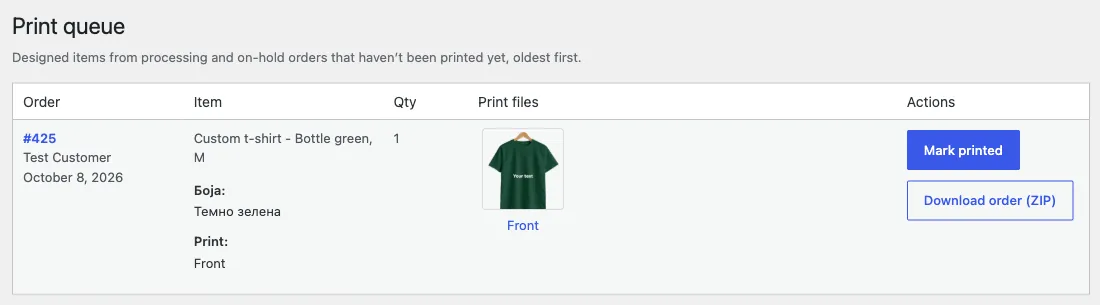
The queue reads WooCommerce’s own statuses only. An order moved to a custom status leaves the queue, printed or not. So:
- Keep orders in Processing while they wait to be printed, and mark each item printed as it comes off the press. The order’s notes then record what was printed, item by item.
- Move an order to a custom status once all its items are printed, such as Ready to collect, then to Completed when it leaves.
- Awaiting artwork takes an order off the queue, which is right while you cannot print it. Move it back to Processing when the artwork arrives, or it will not come back to the queue.
The free plugin has no print queue: every order keeps its design, its preview on the product and the customer’s images on the order screen, whatever its status.
Telling customers without a new status
You may not need a status for every message. Add a note to the order and choose Note to customer: WooCommerce sends it at once as the Customer note email, with your words, such as “Your artwork is approved and your shirts are being printed.” Completing the order sends the Completed order email. Customers who have an account also see each order’s status under My account › Orders, so a custom status’s name should make sense to them.
Questions shop owners ask
What order statuses does WooCommerce have?
Pending payment, Processing, On hold, Completed, Cancelled, Refunded and Failed, and Draft for orders the block-based Checkout has not yet placed. A paid order is Processing until you mark it Completed.
Can I add a custom order status without a plugin?
Yes, with code: register the status with the woocommerce_register_shop_order_post_statuses filter and add it to the status list with wc_order_statuses. Its key starts with wc- and is at most 20 characters long. Put the code in a small plugin of your own rather than in the theme.
Does a custom order status send an email?
Not by itself. WooCommerce sends emails for its own statuses, such as Processing order and Completed order. Custom order status plugins can send an email when an order reaches a status; with code, the email has to be written too.
Which status should a paid order be in while it is printed?
Processing: WooCommerce’s status for an order that is paid and not yet fulfilled. Move it to Completed when it is shipped or collected, or to a custom status such as Ready to collect once everything is printed.
Why did an order disappear from PrintBlob’s print queue?
The print queue lists the designed items of Processing and On hold orders that have not been marked printed. An order moved to any other status, a custom one included, leaves the queue; move it back to Processing to bring it back.
Is an order in a custom status counted as paid?
Not by default: WooCommerce counts only Processing and Completed as paid. Some plugins let you mark a custom status as paid, and in code the woocommerce_order_is_paid_statuses filter adds it.
Is the print queue part of the free plugin?
No, it is part of PrintBlob Pro: $69 a year or $99 once, for one domain. The free plugin keeps every order’s design, its preview and the customer’s images on the order screen.
For the rest of the order flow, read A checklist for running a WooCommerce print-on-demand shop, and for orders checked before printing, Artwork approval for custom prints: a live mockup or emailed proofs.
Get PrintBlob Pro
Pro adds print-ready files, back printing, a 3D view and a production print queue to the free designer. Paid with Stripe in US dollars, no tax added; one domain per licence.
$69 a year
Full refund within 14 days
Limited-time offer until 31 December 2026
$99 once
Full refund within 14 days