A checklist for running a WooCommerce print-on-demand shop
Everything to check before and after opening a WooCommerce shop that prints customers' designs itself: products and mockups, print files and DPI, pricing per printed side, proofs, the order flow from checkout to press, returns for custom items, and the privacy of customer uploads.
Published , updated , by the PrintBlob team.
Before you open a WooCommerce shop that prints its customers’ designs itself, check seven things, and check them again after the first few weeks: products and mockups, print files and DPI, pricing per printed side, what the preview promises, the order flow from checkout to press, returns for personalised items, and the privacy of customer uploads.
“Print on demand” usually means dropshipping: a print company prints and ships, and the shop never touches a shirt. This checklist is for the other kind, where you print the orders yourself, on your own press or with a local printer you send files to. You control the quality, the turnaround and the margin, and you also own every step between a customer’s click and a parcel. Print on demand vs printing yourself weighs the two.
Products and mockups
- Each product has a photo per printable side, of the blank you actually stock, front and back from the same spot. A white or light grey blank lets one photo show every colour. See photographing t-shirts for a product designer.
- Each side has a print area and a real print size, measured on the smallest size you sell and within your press’s limits. See print areas and print sizes per product.
- Colours and sizes are global attributes (Products › Attributes), and each product is a variable product with a variation per colour and size, priced and with stock.
- Sold-out combinations can’t be ordered. Set stock per variation, or mark a variation out of stock, so customers can’t order a colour and size you don’t have.
- The product description says what is printed and how: print method, care instructions, the print area, and what the customer can and can’t change.
In PrintBlob, the photos, print areas and print sizes are a mockup (PrintBlob › Mockups); each product with the designer chooses one. The free plugin prints on the front of its bundled t-shirt; PrintBlob Pro adds your own products and photos, the back and the left and right sleeves. See Mockups and Products.
Print files and DPI
- Every order arrives with a file you can print as it is: a PNG with a transparent background, at 300 DPI at the real print size, one per printed side.
- Customers are told when their image is too small for the size they’ve placed it at, before they order.
- You’ve printed a test of every product, from a real order’s file, and checked the print lands where the designer showed it, at the expected size.
- Your printer’s software takes the file without resizing. Check one file’s pixel size and the print size your software reads from it.
PrintBlob Pro renders each printed side, when the customer adds the design to the cart, as a transparent PNG at exactly the print area’s size at 300 DPI, and as a vector PDF and an SVG of the same size: a 28 × 36 cm area becomes a PNG of 3307 × 4252 pixels and a page of 280 × 360 mm. While a customer resizes an image, the designer shows its DPI at that size and warns below 150 DPI. Print-ready t-shirt files explains what that means for DTG, DTF and screen printing, and the image print size calculator checks any image against its print size.
Pricing
- The blank and the print are priced separately: the variation price covers the blank, packing, fees and margin; a price per printed side covers ink, consumables and press time.
- Customers see the total change as they add a side, before the cart.
- Larger sizes and dark colours that cost you more are priced through their variations.
- Shipping and tax are set under WooCommerce › Settings, and the prices are right for where you sell.
PrintBlob adds a print price per side: you enter Print price: Front on each product (and with PrintBlob Pro, Print price: Back and the sleeves’), and the designer shows the product, each printed side and the total as the customer designs. How to price custom t-shirt printing builds the numbers from your costs.
Proofs and expectations
A designer shows the customer their design on the product before they pay, which is the proof most one-off orders need. Be clear about what it is and isn’t:
- Say that the preview shows placement and size, not exact colour. Screens and fabric show colour differently, especially very bright colours and dark fabrics.
- Decide whether you check orders before printing, and say so: for example, that you contact the customer if an image is too low in resolution or contains something you won’t print.
- Keep a separate proof step for large orders. For a team or a business order, a mock-up by email and a yes before printing avoids reprinting dozens of shirts.
- State your turnaround from order to dispatch, and what happens in busy weeks.
PrintBlob has no proof-approval step of its own: the designer’s preview, with the print area drawn as a dashed line and its size in centimetres, is what the customer approves by ordering. Artwork approval for custom prints compares that with emailed proofs.
From order to press
- You know where the files are. Every order screen should give you the print file of each designed item.
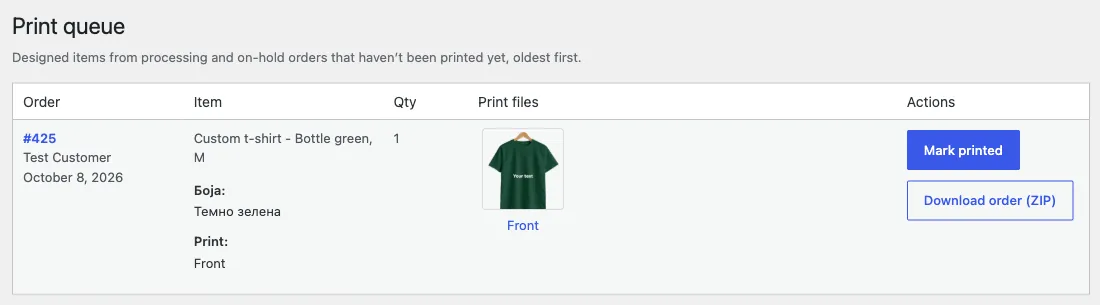
- You can tell what’s left to print, oldest first, without re-reading every order.
- Order statuses mean something: for example, Processing until it’s printed and packed, Completed when it’s shipped. WooCommerce order statuses for a print shop covers adding your own.
- A misprint has a process: who reprints, what you note on the order, and how you tell the customer about any delay.
With PrintBlob, each designed item on the WooCommerce order screen shows a preview per side; with PrintBlob Pro, also Download Front print file (the PNG), Download Front PDF and Download Front SVG (and the same for the back and the sleeves) and the customer’s own images as they uploaded them. Print files are kept in a protected folder that only shop managers can download from. With PrintBlob Pro, PrintBlob › Print queue lists every designed item of processing and on-hold orders that hasn’t been printed yet, oldest first. Mark printed takes an item off the queue and adds a note to the order, and Download order (ZIP) gives all of an order’s print files in one ZIP with a print list of products, colours, sizes and print sizes.
Returns for custom items
- Your terms say what happens to personalised items if the customer changes their mind, and the checkout or product page says it before they pay.
- Faults are handled separately: a misprint, a damaged shirt or the wrong size sent is your problem to fix whatever your returns policy says.
- You’ve checked the law where your customers are.
In the EU, the right to withdraw from an online purchase within 14 days does not apply to “goods made to the consumer’s specifications or clearly personalised” (Article 16(c) of Directive 2011/83/EU), and the UK’s Consumer Contracts Regulations have the same exception. The trader still has to tell the customer, before the purchase, that they won’t have that right. The exception covers a change of mind, not faults: goods still have to match what was sold. Other countries have their own rules; check them for every country you sell to. Return policy for custom printed products sets out the rules in the EU, the UK and the US, with a policy to adapt.
Privacy of customer uploads
Customers upload family photos, children’s names and company logos. Treat them as personal data.
- You know where uploads are stored, and that they are not publicly reachable.
- Designs that never became orders are deleted after a set time.
- Data requests include uploads: a customer who asks for their data, or for it to be erased, gets their designs too.
- Your privacy policy says what is stored and for how long.
- Customers confirm they may use what they upload, in your terms and next to the designer.
PrintBlob sends customers’ designs and files to no outside service. Previews are stored in the media library, and print files and the customers’ original images in a protected folder; they are deleted with the design. Designs added to a cart but never ordered are deleted after the number of days under WooCommerce › Settings › PrintBlob (7 by default), and an order’s designs are deleted when the order is deleted. Designs are part of WordPress’s Export Personal Data and Erase Personal Data tools, with ordered designs following WooCommerce’s own setting for order data, and PrintBlob adds what it stores to WordPress’s privacy policy guide. See Settings.
Before you open
- Place a real order of every product: design both sides, check the price, pay, download the files, print, pack.
- Read the order confirmation email as a customer would.
- Open the designer on a phone and design a full shirt there.
- Ask someone who has never seen the shop to order something, and watch where they hesitate.
Questions shop owners ask
What is print on demand when you print the orders yourself?
“Print on demand” usually means dropshipping: a print company prints and ships. When you print yourself, on your own press or with a local printer you send files to, you control the quality, the turnaround and the margin, and you own every step between a customer’s click and a parcel.
What should every order arrive with?
A file you can print as it is: a PNG with a transparent background at 300 DPI at the real print size, one for each printed side. Customers should also be told before they order when their image is too small for the size they have placed it at.
Do I need to send a proof for every order?
For most one-off orders, the designer’s preview of the design on the product is the proof. Say that it shows placement and size, not exact colour, and keep a proof by email for large team or business orders.
Can customers return personalised items?
In the EU, the 14-day right to withdraw from an online purchase does not apply to goods made to the consumer’s specifications or clearly personalised, and the UK has the same exception; the customer must be told before the purchase. It covers a change of mind, not faults, and other countries have their own rules.
How should I handle the photos customers upload?
As personal data: keep uploads out of public reach, delete designs that never became orders after a set time, include uploads in data export and erasure requests, say in your privacy policy what you store and for how long, and have customers confirm they may use what they upload.
Next steps
- Start from the beginning: how to sell custom t-shirts with WooCommerce.
- Add more products: sell custom hoodies, mugs, tote bags and caps.
- See how a print shop runs its orders with PrintBlob: a print shop taking custom orders online.
- Download PrintBlob free, or try the designer first.
Get PrintBlob Pro
Pro adds print-ready files, back printing, a 3D view and a production print queue to the free designer. Paid with Stripe in US dollars, no tax added; one domain per licence.
$69 a year
Full refund within 14 days
Limited-time offer until 31 December 2026
$99 once
Full refund within 14 days