How PrintBlob Pro makes a 3D product from your photos
PrintBlob Pro turns your product's front and back photos into a 3D product customers turn in the designer, with their design printed on it. What photos to take, how to prepare them, and how the 3D shape is made, step by step.
Published , updated , by the PrintBlob team.
PrintBlob Pro builds a 3D product from two ordinary photos: the front and the back of your product, cut out on a transparent background. It takes the outline from the photos’ transparency, gives the product thickness that grows with the distance from its edges, covers the front and the back with your photos, and prints the customer’s design on it as they edit. You need no 3D model and no 3D software: only a front and a back photo taken from the same place, and PrintBlob Pro ($69 a year or $99 once (limited-time offer until 31 December 2026), see the pricing page).
This guide shows what customers see, which photos work, how to set them up, and exactly how the 3D shape is made from them, so you know what to change when something doesn’t look right.
What does the customer see in the 3D view?
On a product page with the designer, PrintBlob Pro adds a 3D button beside Front and Back. The product hangs on a hanger from a short rail, in the colour the customer picked, with their design on the front and the back. They drag it to turn it; let go, and it keeps turning a little, slows down and settles on the side nearest to them. Front and Back turn it round, and 3D again goes back to editing. What they change in the panel while it is open (the colour, a text, an image) is drawn on the product straight away.
- Front, Back and 3D above the stage. 3D again goes back to editing.
- Drag the product to turn it: it keeps turning a little after you let go, then settles on the side nearest to you.
- The design follows the folds of the fabric, front and back, in the colour picked in the panel.
- The hint “Drag to turn the product” under the stage.
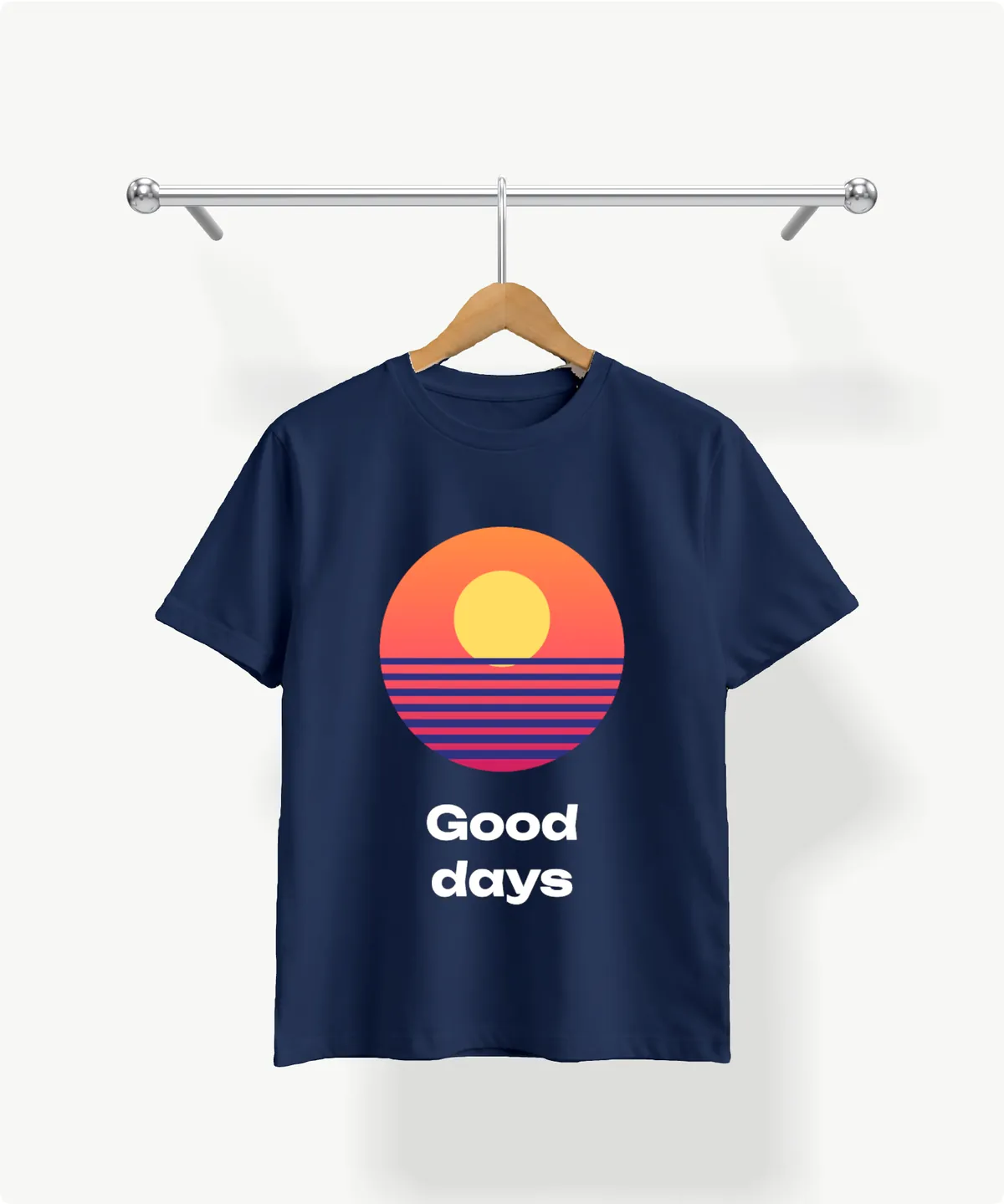
Each product can open in 2D with a 3D button, open straight in 3D, or stay in 2D: Product view under WooCommerce › Settings › PrintBlob sets it for the shop, and the same field on a product’s PrintBlob designer tab sets it for that product. You can try it on the bundled t-shirt in the live designer.
What photos do I need for a 3D view?
- A front photo and a back photo of the same product, each cut out on a transparent background (PNG or WebP). The 3D view needs both: a product with one side only shows no 3D button.
- The back taken from behind, from the same place as the front: the same distance, height and zoom, with the product on the same hanger. PrintBlob lines the back up as the front’s mirror image.
- The same canvas size and framing for both, with the whole product in the frame and a small margin round it.
- A white or light grey product, if you sell several colours: PrintBlob recolours one photo to every colour and keeps its folds. See Colours and recolouring.
- About 1600 pixels tall is plenty. The bundled t-shirt’s photos are 1334 × 1600 pixels.
The guide Photographing t-shirts for a product designer covers the photography itself in more detail.
How do I take the front and back photos?
Hang the product on a hanger against a plain wall and light it softly and evenly: a large window on an overcast day, or two lights bounced off white boards on either side. Even light matters twice in 3D: the print takes its light and shade from the photo (see below), and a dark lower half looks like a different fabric once recoloured.
Put the camera on a tripod, frame the whole product, and take the front. Then turn the product round on its hanger without moving the camera, and take the back. Mark where the hanger hangs so it returns to the same place. If the back is taken from a little further away, or a little to one side, its edges no longer meet the front’s in 3D: you see a step or a sliver of the other photo along the sides.
Keep the hanger in both photos. It is part of the outline, it makes the product read as hanging, and the 3D view hangs the product from a hook above it.
How do I prepare the photos?
- Cut the product out onto a transparent background. Free editors such as GIMP can do it (Foreground Select, then a layer mask to tidy the edges).
- Clean the edge. Remove any fringe of the old background, drop shadows and stray specks. Everything solid in the photo becomes part of the 3D shape, so a shadow left under the hem becomes part of the hem.
- Export both photos at the same size (the same canvas, the product in the same place), as PNG or WebP with transparency.
How do I set it up in PrintBlob?
The mockup is where the photos, the print areas and the print sizes live. Making and editing mockups is part of PrintBlob Pro (see Mockups).
- Photograph the front. Hang a white or light grey product on a hanger against a plain wall, in soft, even light, and photograph it straight on from a tripod, the whole product in the frame with a small margin.
- Photograph the back without moving the camera. Turn the product round on its hanger and photograph its back from the same place, at the same height and zoom: the 3D view lines the back up as the front’s mirror image.
- Cut both photos out. Remove the background so that only the product and its hanger are left, and save both as PNG or WebP files of the same size. The 3D view takes the product’s outline from this transparency.
- Make the mockup. In PrintBlob › Mockups, add a mockup, choose the front and the back photo, tick Customers can print on this side for each, drag the print area into place and enter its print width and height in centimetres.
- Choose it for the product. In the product’s PrintBlob designer tab, choose the mockup, and set Product view to 2D with a 3D button or Open in 3D (or leave it on the shop’s setting under WooCommerce › Settings › PrintBlob).
- Check it in the designer. Open the product, press 3D and drag it round: along the sides the front and the back should meet without a step, and the print should sit where it does in 2D.
- Recolour the photo to the colour the customer picks: tick it for a white or light grey product.
- Customers can print on this side, and Choose photo, for each side.
- Drag the blue box over the area that can be printed; its corner resizes it along its diagonal, keeping the proportions of the size in centimetres.
- Print width (cm) and Print height (cm): the real size the print area stands for.
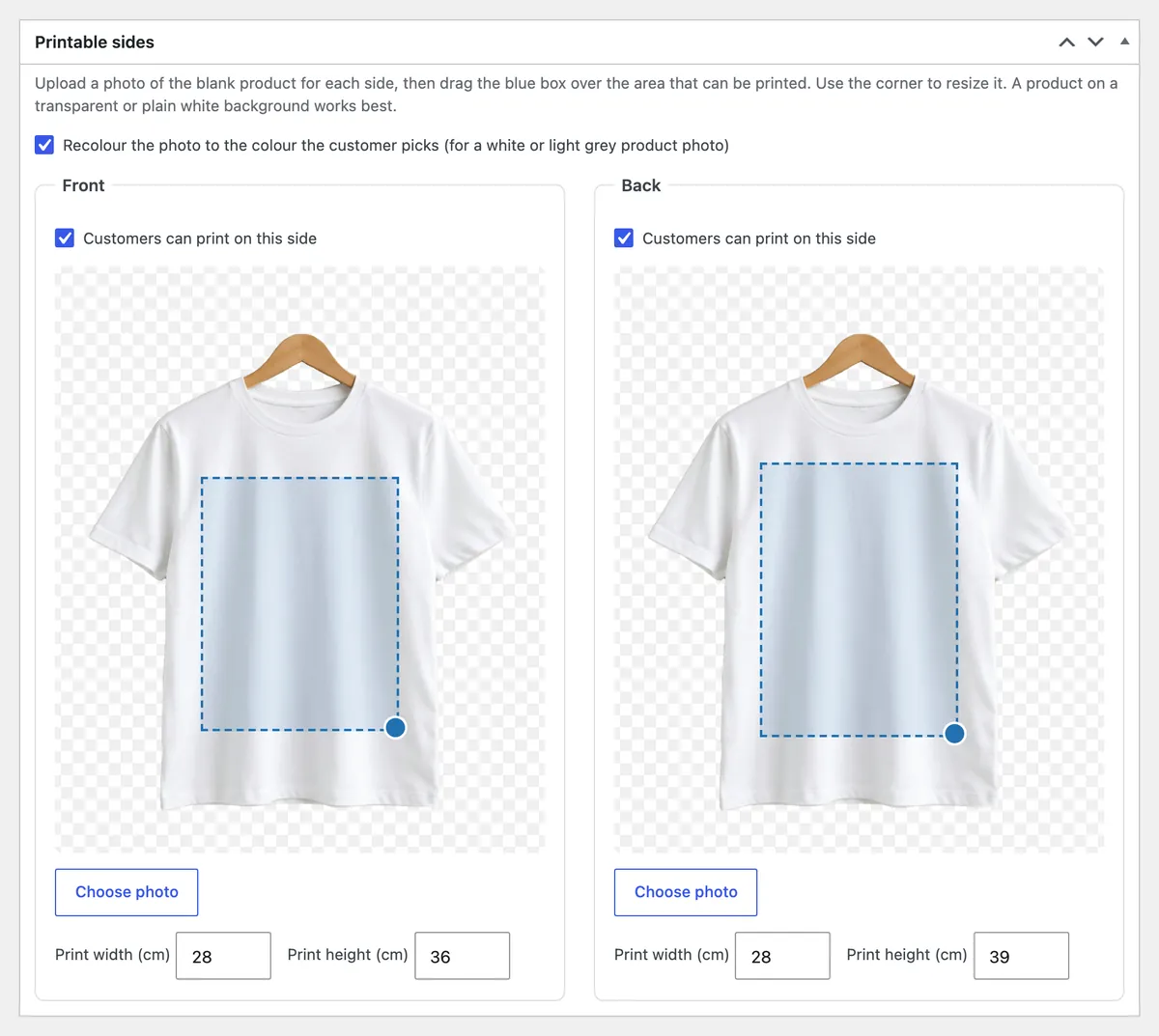
The print area keeps the proportions of the print size you enter: type 28 × 36 cm and the box on the photo is 28 wide by 36 high, wherever you drag it. In 3D the design is laid into that same box, so what customers see on the turning product is the area your print files are made for.
How does PrintBlob turn two photos into a 3D product?
All of this happens in the customer’s browser when the 3D view opens, in short steps with the page answering between them. Nothing is uploaded and nothing is made in advance.
1. The outline comes from the photo’s transparency
Every pixel of a PNG or WebP photo has an alpha value: how solid it is, from fully see-through to fully solid. PrintBlob reads the front photo’s alpha on a grid 240 points across and traces the line where it is exactly half solid. That line is the product’s outline, and the 3D product ends exactly there.
- The front photo, cut out on a transparent background (shown as the grey checks).
- Its alpha channel alone: white where the product is solid, black where the background shows through.
- The outline traced at half alpha on a grid 240 points across: the 3D product ends exactly at the photo’s edge.
2. Each point gets its distance from the nearest seam
Next PrintBlob measures, for every point inside the outline, how far it is from the nearest edge: a distance field, measured on a grid twice as fine as the outline’s and softened so that narrow parts have no ridge along their middle. Narrow parts such as sleeves only have small distances; the middle of the torso has the largest.
- The edge itself: distance zero. Along the seams (sides, shoulders, under the arms) the front and back will meet here.
- Sleeves are narrow, so their distances stay small: they come out slim.
- The middle of the torso is farthest from every seam (about 0.3 of the photo’s width): it comes out fullest.
- At an opening (here the sleeve ends and the hem of the bundled t-shirt) the shirt is taken to carry on past the edge, so the bands reach the edge open instead of closing it.
3. Distance becomes thickness
The front surface is pushed forwards and the back surface backwards by an amount that grows with that distance. Near a seam it grows quickly, like the rounded fold of a tube of cloth, so the front and the back meet at a right angle there; over the body it keeps growing gently. Sleeves stay slim, the torso is fuller, and the whole product stays as slim as a shirt on a hanger: at most 3.2% of the photo’s width on each side.
- A slice across the chest. At the side seams the front and back meet at one edge and leave it at a right angle, as cloth rounds over a fold.
- Over the torso the thickness keeps growing slowly, up to 3.2% of the photo’s width on each side at its middle.
- A slice down a sleeve: thin, and open at its end, where the front and back stay apart.
- Drawn 2.5 times deeper than it is, so the shape can be seen; the real product is slim, like a shirt on a hanger.
4. The outline becomes a mesh
The 3D product is a mesh of triangles. PrintBlob keeps every grid point inside the outline and adds a point wherever the outline crosses a grid line, then fills each grid cell with triangles. The added points are what make the mesh’s edge follow the photo’s edge smoothly instead of in steps. The front and the back are made from the very same points.
- Grid points inside the outline (solid) are kept; points outside (pale) are dropped.
- Where the outline crosses a grid line, a point is placed exactly on it, so the mesh follows the photo’s edge, not the grid’s steps.
- Each cell is filled with triangles from its kept points. Shown much enlarged: the real grid has 240 points across the photo.
5. Seams stay closed, openings stay open
A real shirt is sewn at the sides, shoulders and under the arms, and open at the sleeve ends, the hem and the neck. PrintBlob Pro knows where the bundled t-shirt is open, so its sleeves and hem show their inside when the shirt turns. On the back, where the back photo is see-through inside the outline (the neck, seen from behind), the back is left open too.
On your own photos, the whole outline is treated as a seam. The product turns as one closed shape: nothing to see through, and no inside to show.
- Sleeve ends: open, so the inside of the sleeve shows when the shirt turns.
- The hem: open from one side seam to the other.
- The neck: open, and on the back the 3D view also leaves out what is see-through inside the outline in the back photo.
- Your own mockup: the outline is closed all round, so the product turns as one sealed shape.
6. The front and the back become one product
The front surface carries the front photo. The back surface carries the back photo, flipped left to right, because seen from behind the product’s left is on the right. Along the seams both surfaces share their edge points, so there is no gap when the product is seen edge-on, and a dark partition runs down the middle inside, as the inside of a real shirt is dark when you look into a sleeve.
Near a seam the photo is read from a little further in, so the very edge of your cut-out is not stretched round the rounded side; and the photo’s own colours are carried out into its transparent background, so that when the product is seen edge-on only its own colours blend in at the edge, never a white or dark halo.
- The front surface carries the front photo.
- The back surface carries the back photo, mirrored: seen from behind, the shirt’s left is on the right.
- Along the seams both surfaces use the very same points, so there is no gap to see through when the shirt is seen edge-on.
- Inside, a dark partition runs down the middle, as the inside of a real shirt is dark when you look into a sleeve.
7. The colour and the print are laid on, on the graphics processor
When the mockup recolours its photos, they are recoloured to the colour the customer picked, folds kept. The design is not baked into the photo: the graphics processor lays it into the print area for every pixel it draws, and each pixel of ink takes the light of the cloth under it, measured from the white photo as how much brighter or darker that point is than the fabric’s typical brightness (kept between 55% and 112%). So the print darkens in the folds and brightens on the highlights, as ink on cloth does. A change to the design only redraws the design, not the photos.
- The photo in the colour the customer picked: a white product photo recoloured, its folds kept.
- The customer’s design, drawn at the print area’s proportions.
- The light of the cloth: how much brighter or darker each point of the white photo is than its typical fabric, kept between 55% and 112%.
- On screen: inside the print area, colour = cloth × (1 − ink cover) + ink × light. Outside it, the cloth as photographed.
The design in the 3D view is drawn 720 pixels wide, sharp on a large screen and quick to redraw. It is a preview: the print files your shop receives are made separately, at 300 DPI at the print size (see Print-ready t-shirt files).
8. Light, shadow and the hanger
The light is set so that a surface facing the customer shows your photo exactly as you took it; as the product turns away, it darkens as a real garment would. A key light from the upper left casts a soft shadow on a wall behind the product, of which only the shadow shows over the page’s own background. The product hangs from a chrome hook on a rail and sways a little as it turns, like clothes on a rail.
How it stays light on the page
- The 3D view’s code is a separate file that downloads only when the 3D view opens; the designer itself gets no heavier.
- It opens in short steps (the shape, each photo, each texture, the shaders) with the page answering between them, and the shape is made once per photo and kept while the page is open.
- It draws only while something moves, and not at all while it is scrolled out of view or the tab is hidden.
- Closing it frees everything it held on the graphics processor, its WebGL context included.
- It needs WebGL 2 on a graphics processor. A browser that would draw it in software (graphics acceleration turned off or blocked) is not offered the 3D button, and the designer works as before.
What affects the quality of the 3D product?
- The cut-out’s edge. The outline is drawn where the photo is half solid. A clean, smooth edge gives a smooth silhouette; a jagged or haloed one shows on every side of the product.
- How well the back matches the front. The seams join the two photos edge to edge, so any difference in distance, height or framing shows along the sides.
- Even, soft light. The print takes its shading from the photo: soft folds give a natural print, harsh shadows give a blotchy one, flat light a flat one.
- A white or light grey product for recolouring; a coloured photo is shown as it is.
- Resolution. About 1600 pixels tall is plenty for the 3D view and the designer; more adds weight without detail on screen.
Common problems and how to fix them
| What you see | Why | What to do |
|---|---|---|
| A step or a sliver of the other photo along the sides | The back was taken from a different distance, height or position, or cropped differently | Retake the back from the same tripod position, the product on the same hanger, and export both at the same size |
| A light or dark line round the product | A fringe of the old background left in the cut-out | Remove the fringe (shrink the selection by a pixel or two, or defringe) |
| A lump under the hem or at the side | A drop shadow or a speck left in the cut-out | Erase it: everything solid becomes part of the shape |
| The print looks flat, or blotchy | The photo is lit flat, or with hard shadows | Retake it in soft, even light |
| A colour looks wrong in 3D | The photo is of a coloured product, which recolouring leaves as it is | Use a white or light grey photo, or a mockup of its own for that colour |
| No 3D button | The product view is set to 2D, the mockup’s back is not printable or has no photo, or the browser has no graphics processor for it | Check Product view, tick Customers can print on this side for the back and choose its photo; on that browser the designer works in 2D |
What the 3D view does not do
- It is not a 3D scan. The shape is worked out from the outline, the same way for every product: soft and rounded at the edges, fullest in the middle. A mug will not come out as a cylinder, nor a cap as a dome.
- It knows the openings of the bundled t-shirt only. On your own photos the outline is closed all round.
- It shows two sides. The front and the back come from your photos; sleeve prints are made and printed as usual but are not drawn on the 3D product.
- It does not make your print files. Those come from the designer at 300 DPI, whatever the 3D view shows.
- It needs a graphics processor. Where the browser has none for it, customers design in 2D.
Questions shop owners ask
Do I need a 3D model or 3D software?
No. PrintBlob Pro builds the 3D product in the customer’s browser from the mockup’s front and back photos. There is nothing else to make or upload.
Is the 3D view part of the free plugin?
No, it is part of PrintBlob Pro: $69 a year or $99 once, for one domain. The free plugin’s designer shows the product in 2D.
Does it work for mugs, caps or bags?
It works for any product with a front and a back photo on a transparent background, but it shapes every product the way it shapes a garment: soft, rounded at its edges and fullest in the middle. A mug will not come out as a cylinder, nor a cap as a dome. A product photographed on one side only shows no 3D button.
Why don’t the front and the back line up at the edges?
The back photo was taken from a different distance, height or position than the front, or cropped differently. Take it again from the same tripod position with the product on the same hanger, and export both photos at the same size.
Does the 3D view slow the page down?
Its code is a separate file that loads only when the 3D view opens. It draws only while the product moves, stops drawing while it is scrolled out of view, and frees the graphics memory when it closes. Browsers that would draw it without a graphics processor are not offered the 3D button.
Is the customer’s design sent anywhere to make the 3D view?
No. The 3D view is made in the customer’s browser and sends nothing to any outside service; the design reaches your shop when it is added to the cart.
See 3D preview in the docs for the settings, Mockups for print areas and sizes, and Free and Pro compared for what PrintBlob Pro adds.
Get PrintBlob Pro
Pro adds print-ready files, back printing, a 3D view and a production print queue to the free designer. Paid with Stripe in US dollars, no tax added; one domain per licence.
$69 a year
Full refund within 14 days
Limited-time offer until 31 December 2026
$99 once
Full refund within 14 days