Every colour from one product photo
PrintBlob recolours one photo of a white product to every colour you sell, in the customer's browser, keeping the folds and shading of the fabric. The colours come from your WooCommerce colour attribute, each with its colour value. It is in the free plugin, with the Colours block that shows every colour on any page.
Free
Published , by the PrintBlob team.
Free or Pro?
- Free Every colour of the product from one photo, and the Colours block.
What does recolouring do?
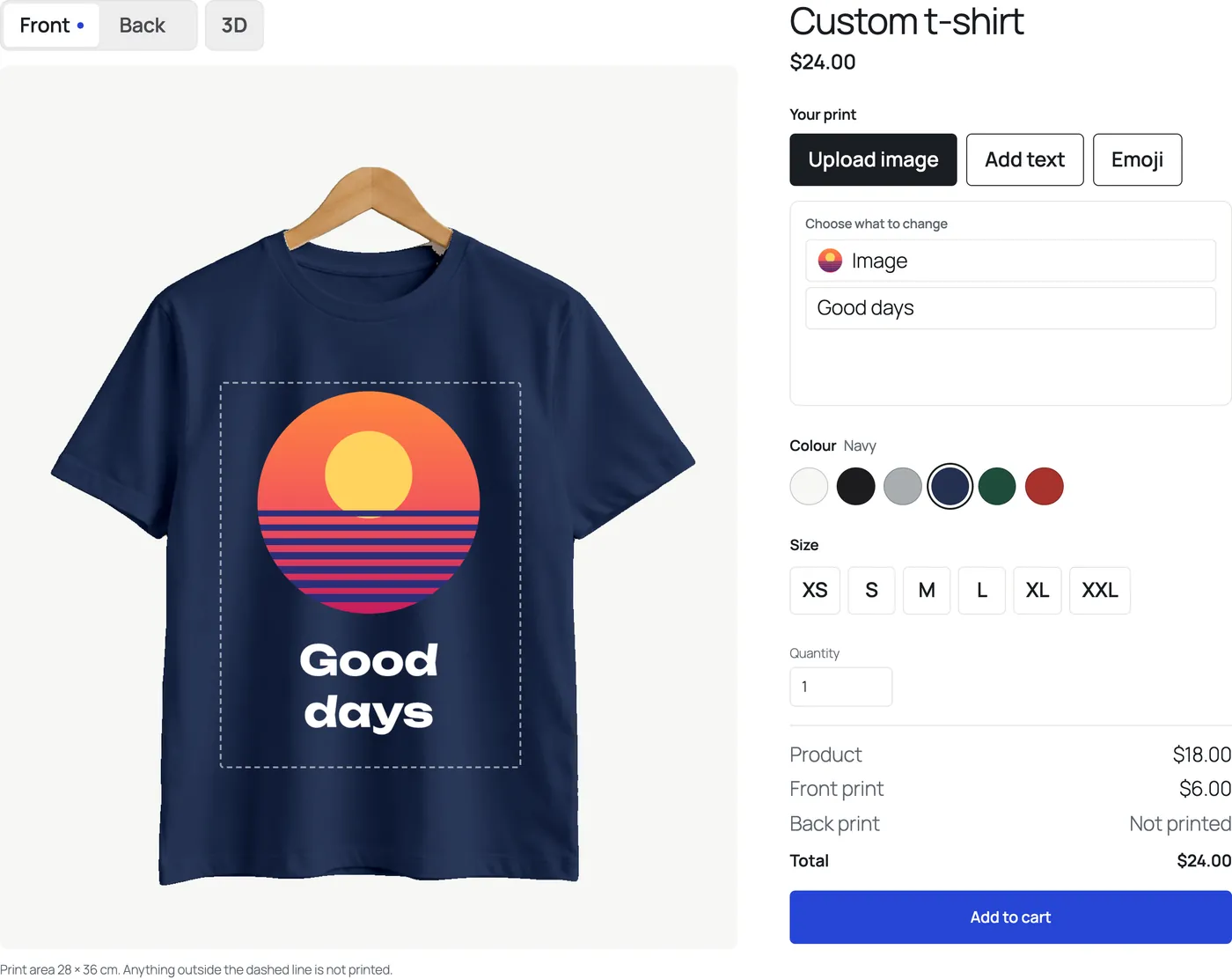
Photographing a product in every colour you sell is slow and the photos never quite match. PrintBlob needs one photo of the product in white. When a customer chooses a colour, the designer recolours that photo to the colour’s value, keeping the folds and the shading, so a navy shirt looks like a navy shirt and not a flat blue shape. The print files are not affected: they hold only the design.
Where do the colours come from?
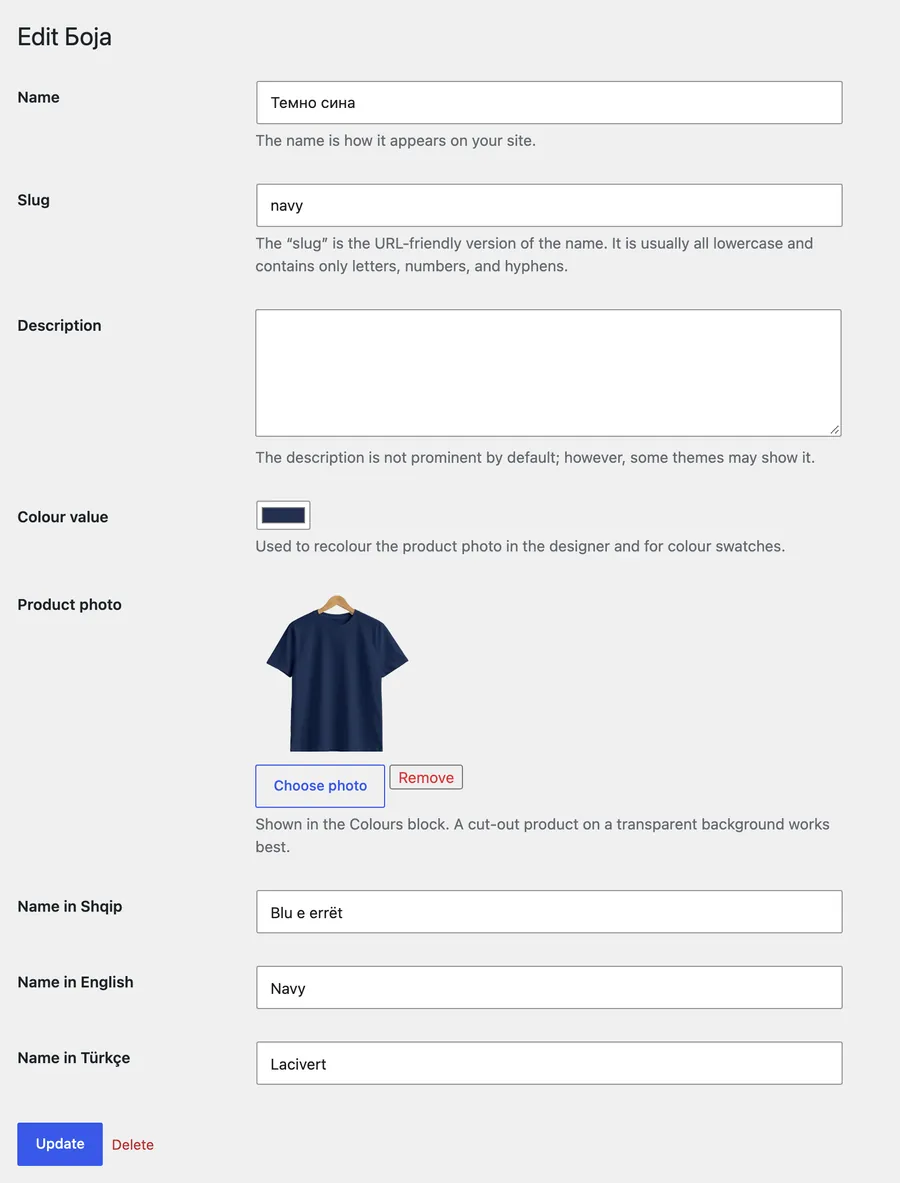
From WooCommerce: the terms of the attribute you name as Colour attribute, each with the Colour value PrintBlob adds to its edit screen. A variable product that uses those colours keeps its own prices and stock per colour and size, and the designer keeps sold-out combinations unavailable.
What is the Colours block?
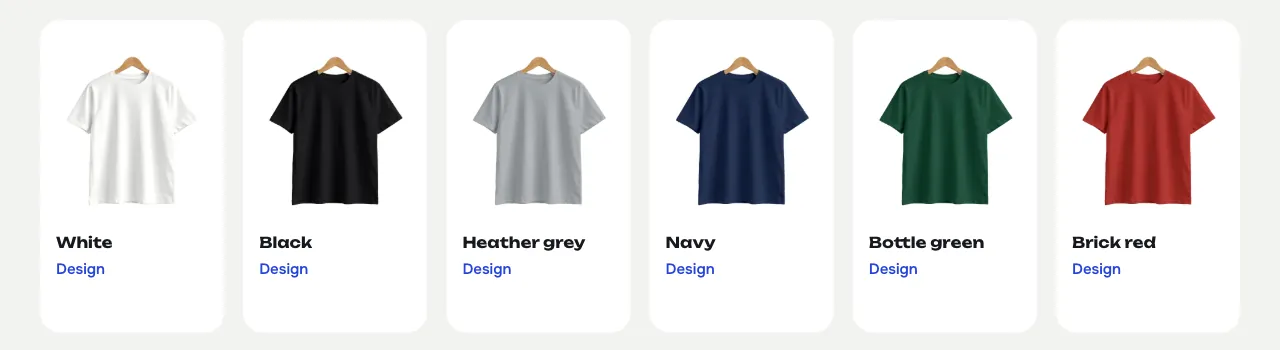
A block that shows the colours you sell, as a rail or a row, with or without their names. Each colour links to the designer page in that colour, so a “Design yours” page can start from the colour the customer likes.
Who is it for?
Any shop selling a product in several colours: t-shirts and hoodies in a dozen colours, team kit in club colours, merch in a brand’s colours. You photograph once, and adding a colour is a new attribute term, not a photo shoot.
What are the limits?
Recolouring needs a photo of a white or light grey product, evenly lit; a mockup whose photo is of a coloured product keeps it as it is (leave Recolour the photo unticked). It makes a solid colour with the photo’s shading: it does not add a heather texture or a pattern. Photos on a transparent background work best.
How do I set up the colours?
- Choose the colour attribute. Under WooCommerce › Settings › PrintBlob, set Colour attribute to the product attribute whose terms are your colours.
- Give each colour its value. Open Products › Attributes, then the terms of that attribute, and give each term a Colour value. A Product photo is optional; the Colours block shows it.
- Use a white photo on the mockup. The bundled t-shirt is white and set to recolour. With PrintBlob Pro, tick Recolour the photo to the colour the customer picks on your own mockups.
- Show the colours. Add the Colours block to any page. Each colour opens the designer in that colour.
Try it in the live demo
Every colour from one photo. The shirt opens in bottle green. All 6 colours of the demo are one white photo, recoloured in the browser to each colour's value, folds and shading kept.
Set it up
- Colours
PrintBlob gives each term of your colour attribute a colour value and a photo, and one white product photo is recoloured to every colour you sell. The Colours block shows each colour with a link to design it.
- Settings
PrintBlob's settings are under WooCommerce › Settings › PrintBlob: the designer page, the colour and size attributes, the upload limit and how long designs that were never ordered are kept.
- Photographing t-shirts for a product designer
How to photograph your own blank shirts so customers can design on them: hanger or flat lay, light, a white shirt for every colour, front and back that match, a transparent background, and the print area in centimetres.
Questions
Do I need a photo of every colour?
No. One photo of the product in white is recoloured to each colour's value. A colour term can still have its own product photo for the Colours block.
What happens to the customer's text when they change colour?
Text the customer has not given a colour of their own switches between dark and white ink, so it stays readable on the new colour. Text they coloured keeps its colour.
Are labels and backgrounds recoloured too?
No. Labels, hangers and backgrounds in colour keep theirs; the recolouring follows the white fabric.
Get PrintBlob Pro
Pro adds print-ready files, back printing, a 3D view and a production print queue to the free designer. Paid with Stripe in US dollars, no tax added; one domain per licence.
$69 a year
Full refund within 14 days
Limited-time offer until 31 December 2026
$99 once
Full refund within 14 days
Try it on your own shop
PrintBlob is free in the WordPress.org plugin directory: install it, turn the designer on for a product and take a design order. PrintBlob Pro is $69 a year or $99 once (limited-time offer until 31 December 2026), with a full refund within 14 days.