Colours
Colour values and photos for the colour attribute, recolouring, and the Colours block.
PrintBlob reads your product colours from a WooCommerce attribute (Colour attribute in Settings).
Colour values and photos
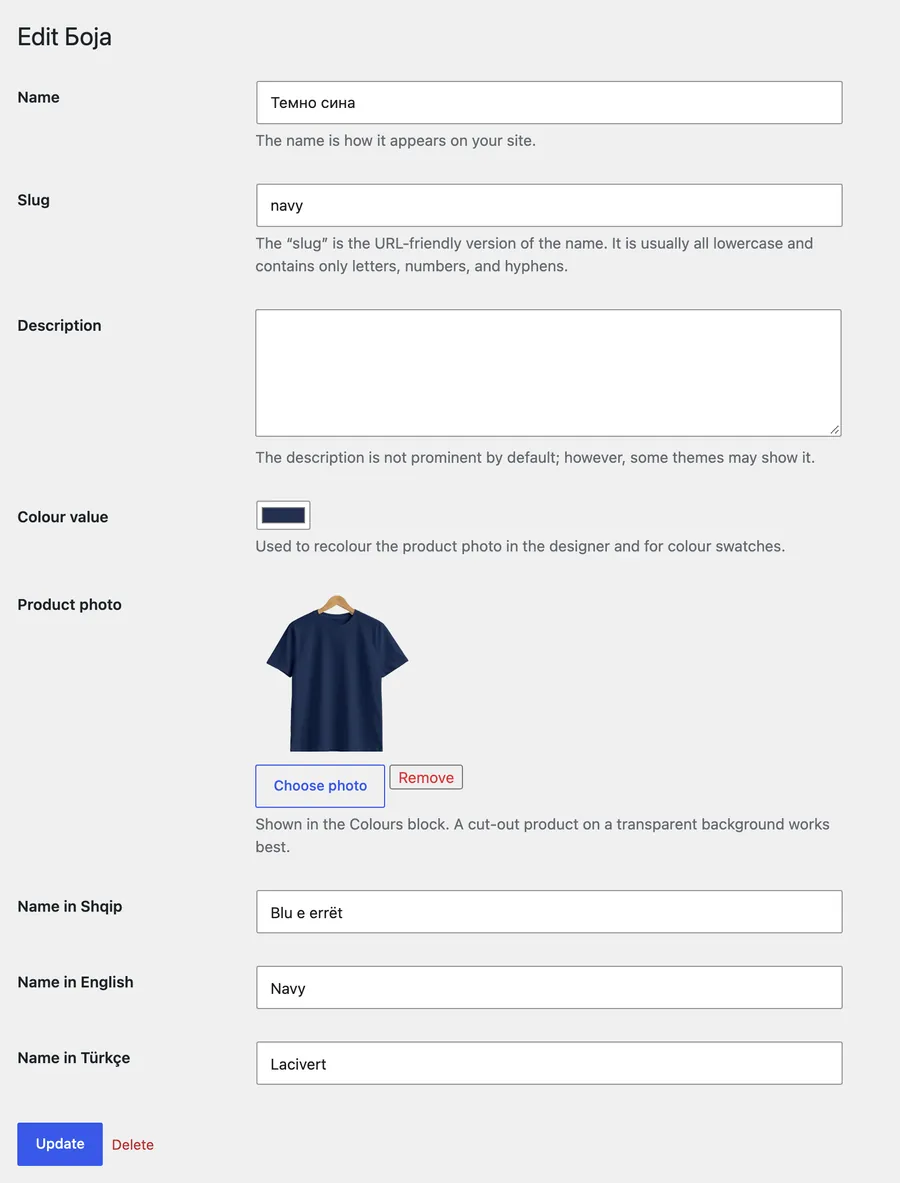
Open Products › Attributes, then the terms of your colour attribute. Each term has two PrintBlob fields:
- Colour value: used to recolour the product photo in the designer and for colour swatches.
- Product photo: shown in the Colours block. A cut-out product on a transparent background works best.
Recolouring
When a mockup has Recolour the photo to the colour the customer picks ticked, the designer changes the white product photo to the colour value of the chosen colour, keeping folds and shading. Labels, hangers and backgrounds in colour keep theirs. Text the customer has not given a colour switches between dark and white ink so it stays readable.
The Colours block
Add the Colours block to any page to show the colours you sell. Each colour opens the designer in that colour. Choose a rail or row layout and whether to show the names.
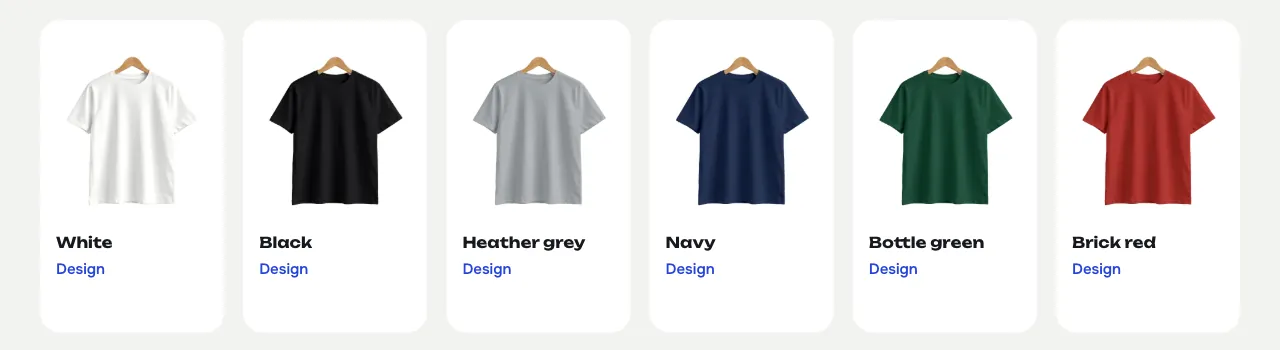
Colour links go to the Designer page set in Settings.